
Help
Reading a book, essay or article
Where: Any book in the library, any part of Prophecy, and blog posts read in pages.
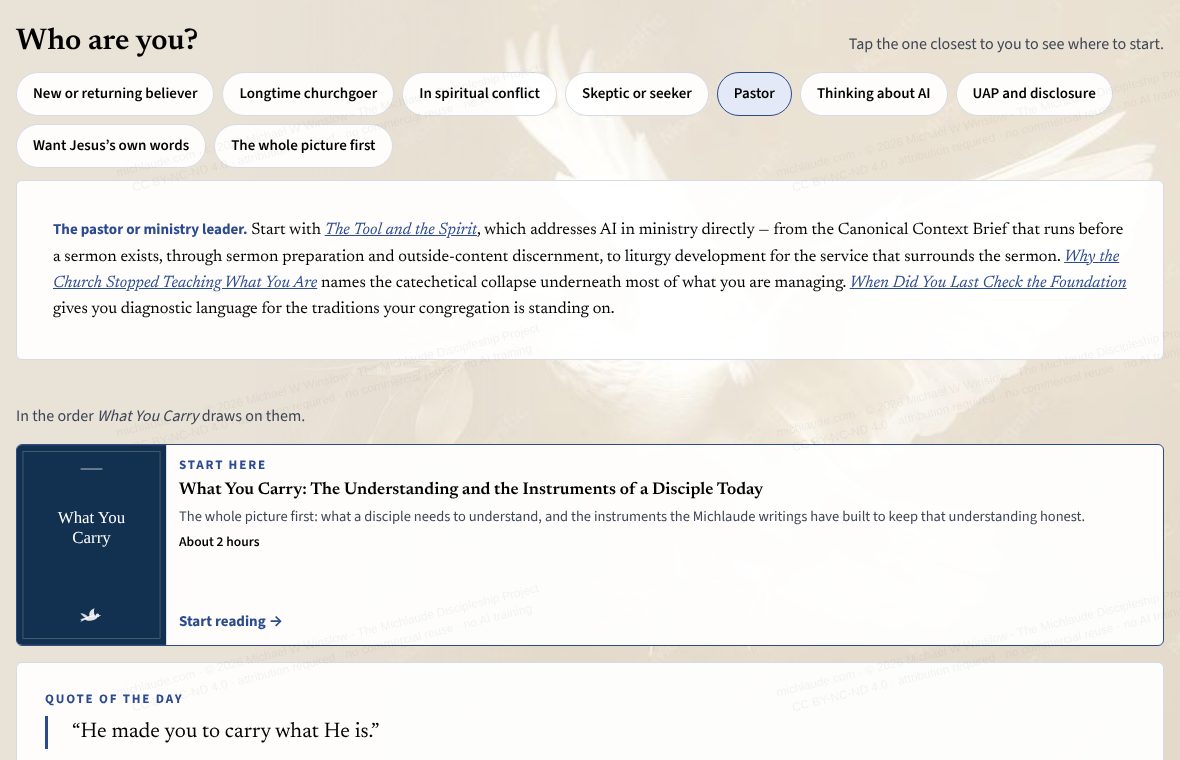
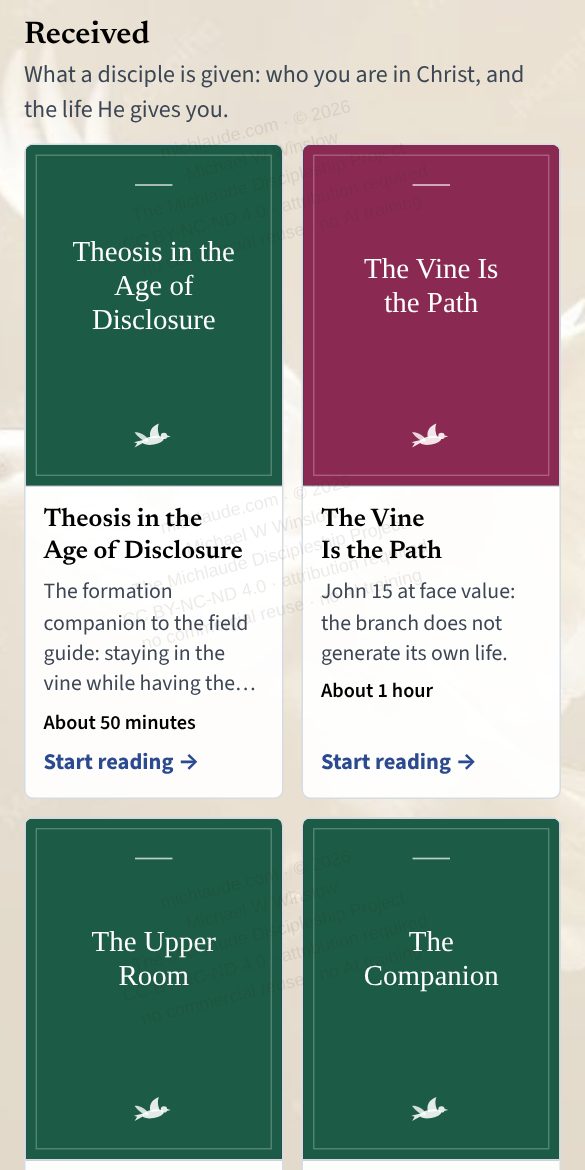
The library shows each book as a cover. Under the cover are the title, one line about the book, and how long it takes to read at an ordinary pace: for example about 25 minutes for an essay, about 2 hours, or a full book with its length. Tap a card to open the book. If you are not sure where to begin, tap the Who are you? chip that is closest to you; it opens a short list of books to start with. The books are in groups, and each group has a heading and one line saying what it is for.
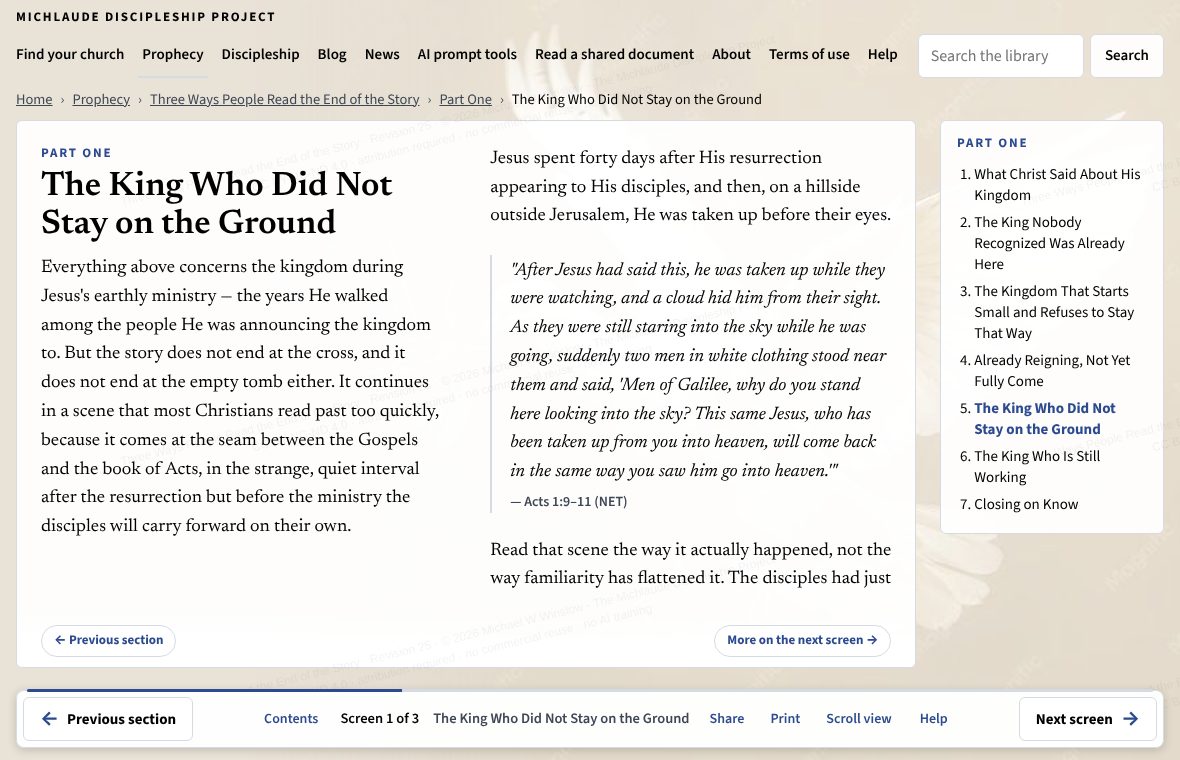
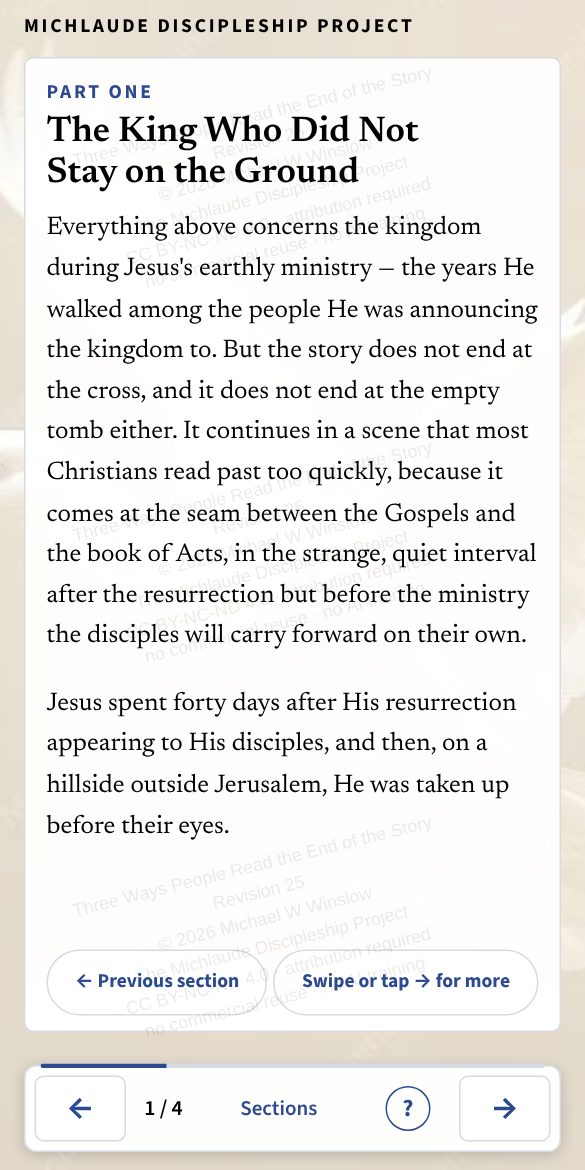
The books open in a page-turning reader. The text fills the screen in columns and you turn the screen instead of scrolling. A bar at the foot of the window shows where you are, for example Screen 2 of 3.
- Turn to the next screen with the Next screen button, the right arrow key, Page Down, the space bar, or a swipe to the left on a phone.
- Go back with the Back button, the left arrow key, Page Up, Shift and space, or a swipe to the right.
- Press Home or End to jump to the first or last screen.
- On the last screen the button changes to Next section, which opens the next part of the book. On the first screen Back opens the part before it.
- Contents in the bar opens the book’s contents page.