

The Michlaude Discipleship Project
Help
How to use this site. Each section says what a feature does, where to find it and how to use it. If something here does not match what you see, please tell the author.
Finding your way
Where: The menu at the top of every page, and the foot of every page.
The menu leads to the main parts of the site: the Denominational Mapping Instrument, Prophecy, Discipleship (the library), Blog, News, Tools, Reader, About and Terms of use. The foot of each page repeats these and adds Quote of the Day, Search, Contact the author and What’s new.
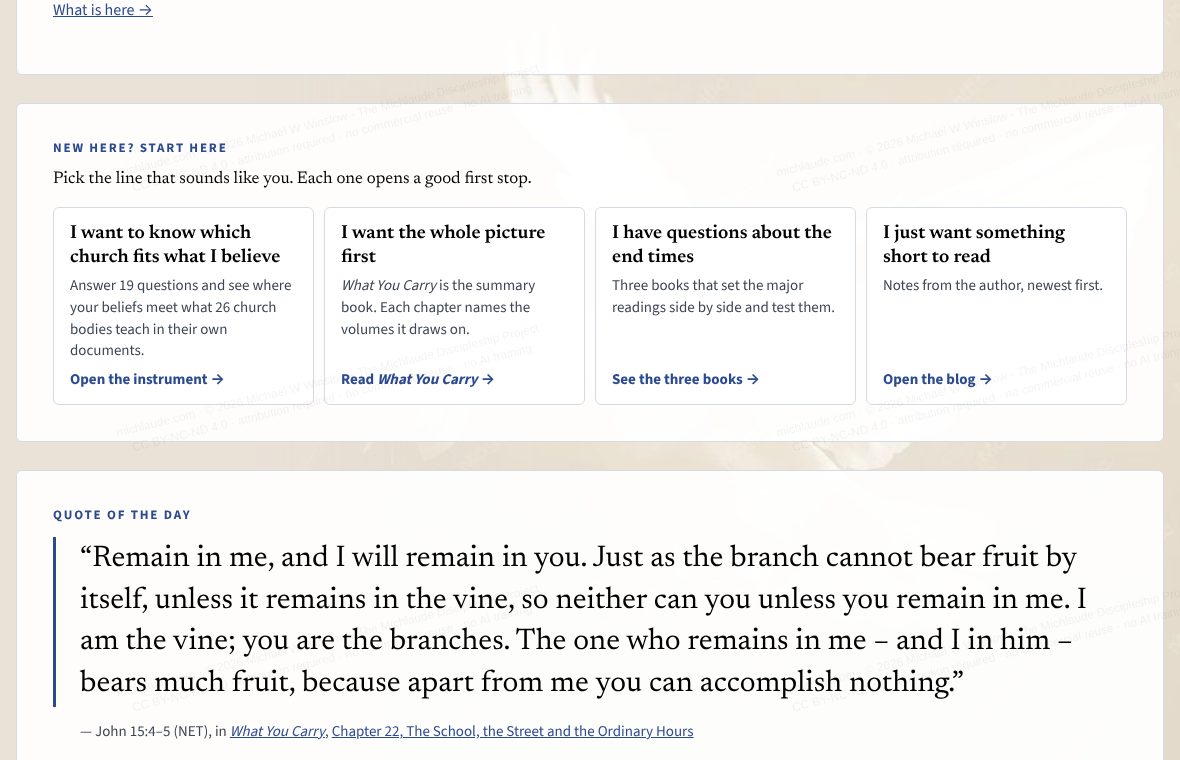
New here? The home page has a Start here panel with four short paths: which church fits what you believe, the whole picture first, questions about the end times, and something short to read. What’s new lists what has been added, newest first.
Reading a book, essay or article
Where: Any book in the library, any part of Prophecy, and blog posts read in pages.
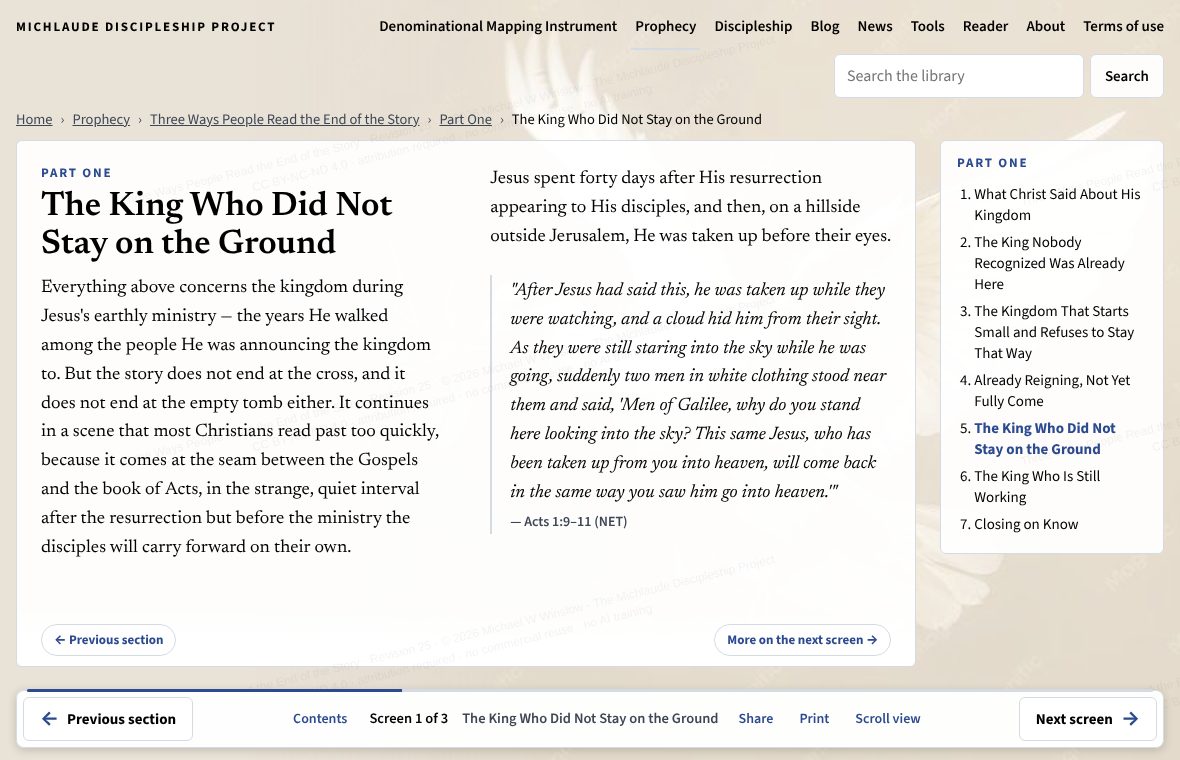
The books open in a page-turning reader. The text fills the screen in columns and you turn the screen instead of scrolling. A bar at the foot of the window shows where you are, for example Screen 2 of 3.
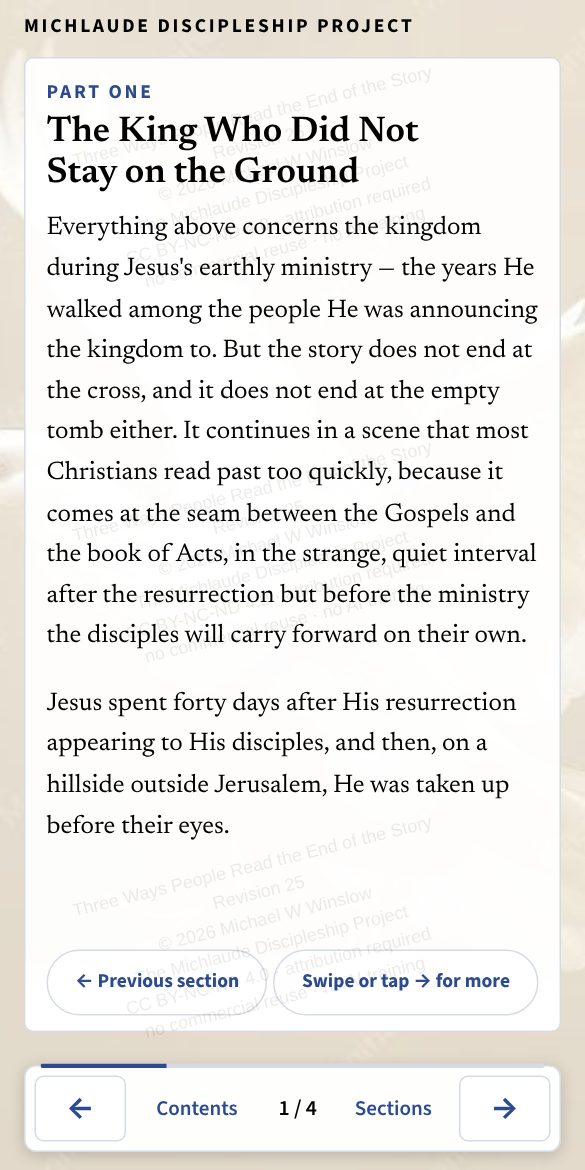
- Turn to the next screen with the Next screen button, the right arrow key, Page Down, the space bar, or a swipe to the left on a phone.
- Go back with the Back button, the left arrow key, Page Up, Shift and space, or a swipe to the right.
- Press Home or End to jump to the first or last screen.
- On the last screen the button changes to Next section, which opens the next part of the book. On the first screen Back opens the part before it.
- Contents in the bar opens the book’s contents page.
Page view or scroll view
Where: The Scroll view button in the bar.
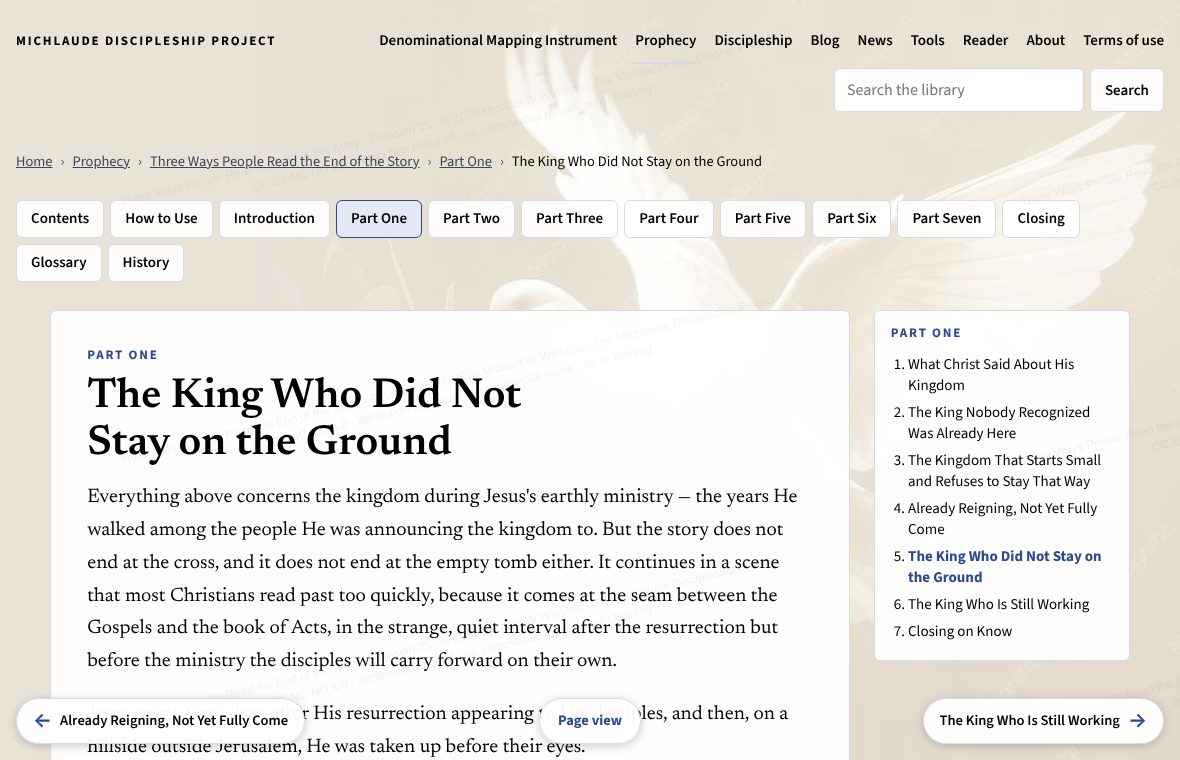
If you would rather scroll, press Scroll view. The part becomes an ordinary scrolling article, with Back to top, Share this page and Print this page at the foot. Press Switch to page view to go back. The site remembers your choice on this device, and switching keeps your place in the text.
On a very short window the site shows the scrolling article, because there is no room for screens.
Sections and contents
Where: The Sections button in the bar; the list beside the text on a wide screen.
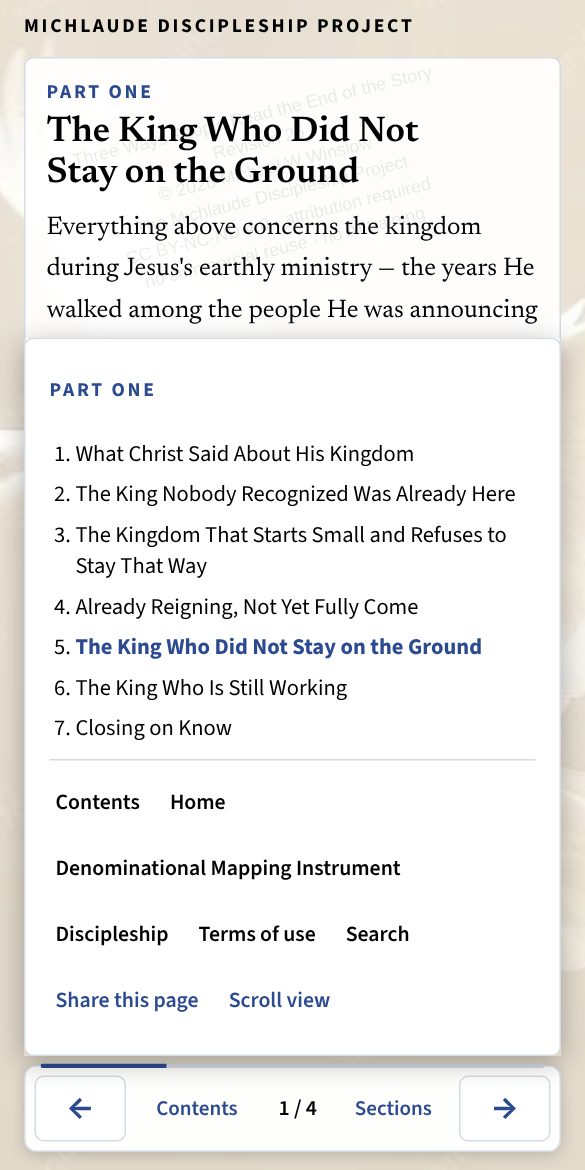
Every book has a contents page. Inside a part, Sections shows the sections of the part you are reading and lets you go straight to one. On a wide screen the list sits beside the text; on a phone it opens over the text, and Escape or a tap outside closes it.
Continue where you left off
Where: The home page, the Discipleship page, the Prophecy page, and a book’s contents page.
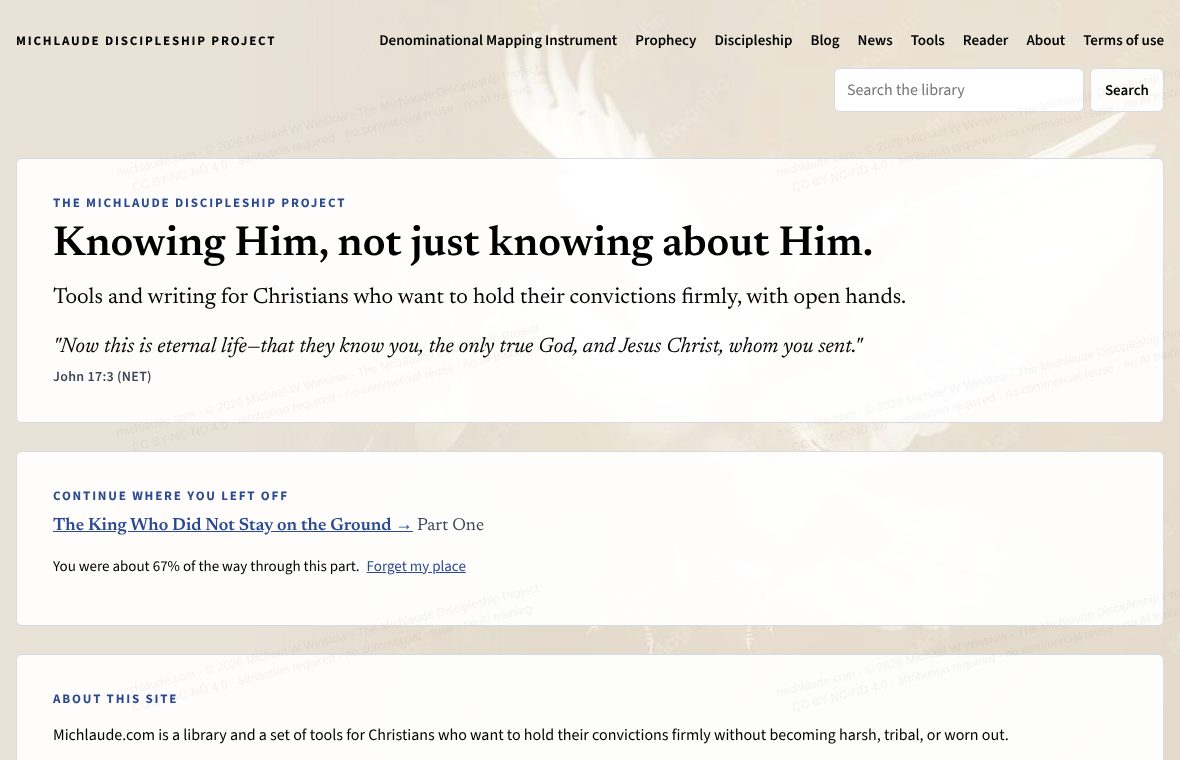
The site remembers, for each book, the last part you read and about how far you got. The home page then offers Continue where you left off with the part, the book and the share you had read. Other books you have started are listed under Also in progress. A book’s own contents page offers only that book’s place.
Follow the link and the reader opens at the place you left. Forget my place clears it: on a book’s contents page it clears that book; on the home page it clears every book.
The place is kept in your browser on this device only. Nothing is sent to the site. A different phone or computer, or clearing your browser’s site data, starts fresh.
Keep reading
Where: The end of every book part and every blog post.
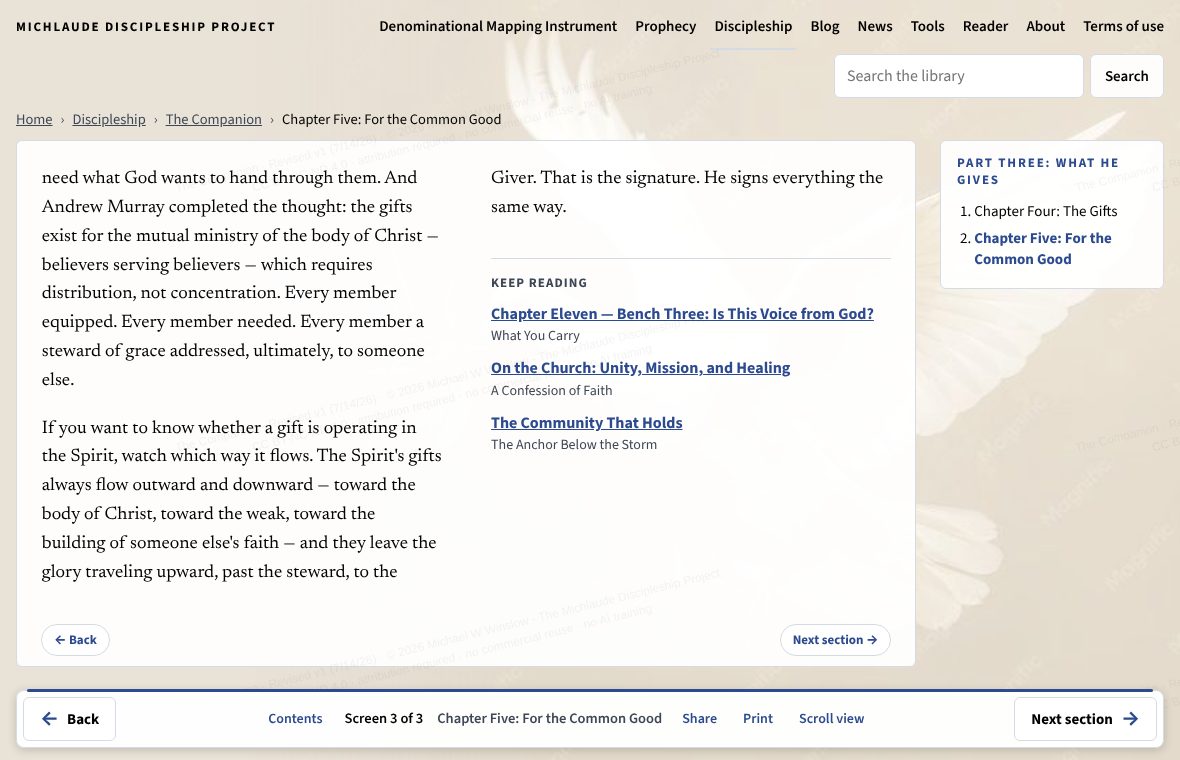
At the end of each part of a book you will find up to three related parts, chosen by the words they share with the one you have just read. They can come from other books. Blog posts end with More from the blog, the newest other posts.
Share a page or a passage
Where: Share in the bar, Share this page at the foot of a part, and any selected text.
- Press Share (or Share this page). On a phone this opens the phone’s share sheet. On a computer it copies the address of the page and says Link copied.
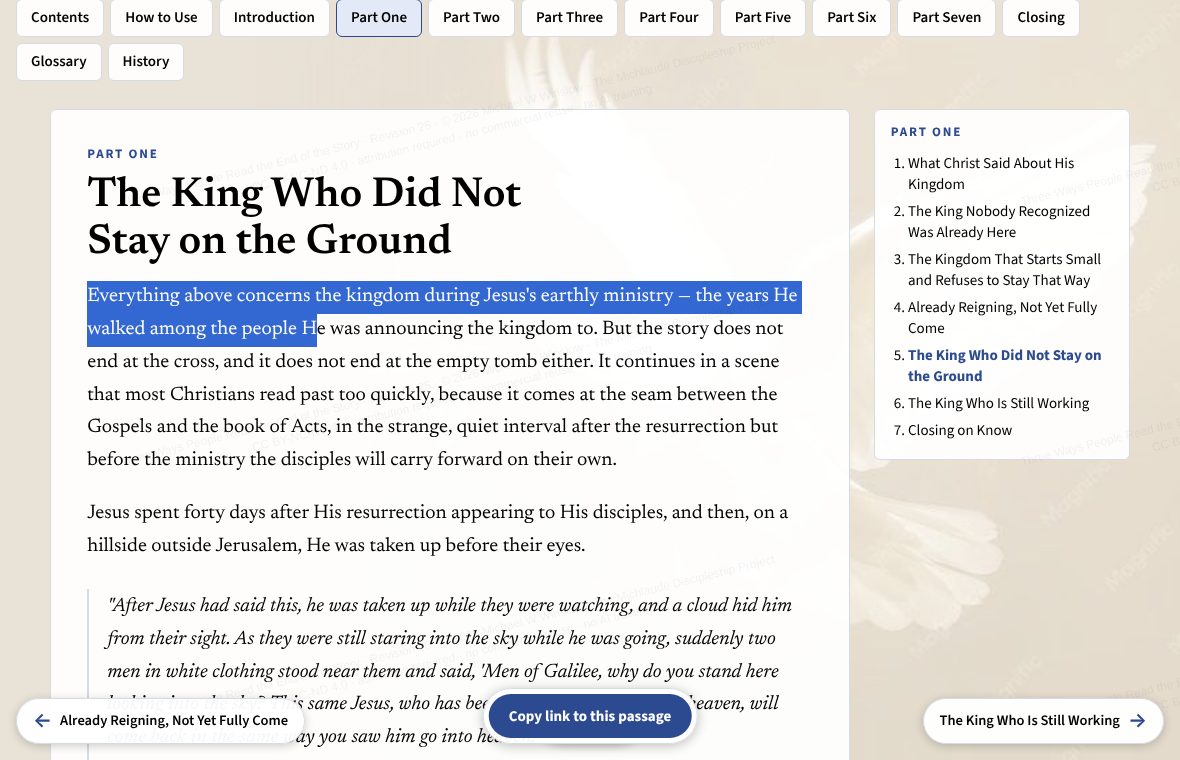
- To share a passage, select the words you want. A small bar appears with Share this passage; it copies the passage together with a link. Anyone who opens the link goes to that page with the passage marked.
Print a chapter or essay
Where: Print in the bar, Print this page at the foot of a part.
Press Print. Your browser’s print window opens with the whole part laid out as plain pages, without the menus and buttons. A line at the foot says where the copy came from and gives the author’s copyright and the terms of use.
To keep it as a file, choose Save as PDF as the destination in the print window; the part’s title is filled in as the file name. On Windows, Microsoft Print to PDF does not suggest a name, so type one.
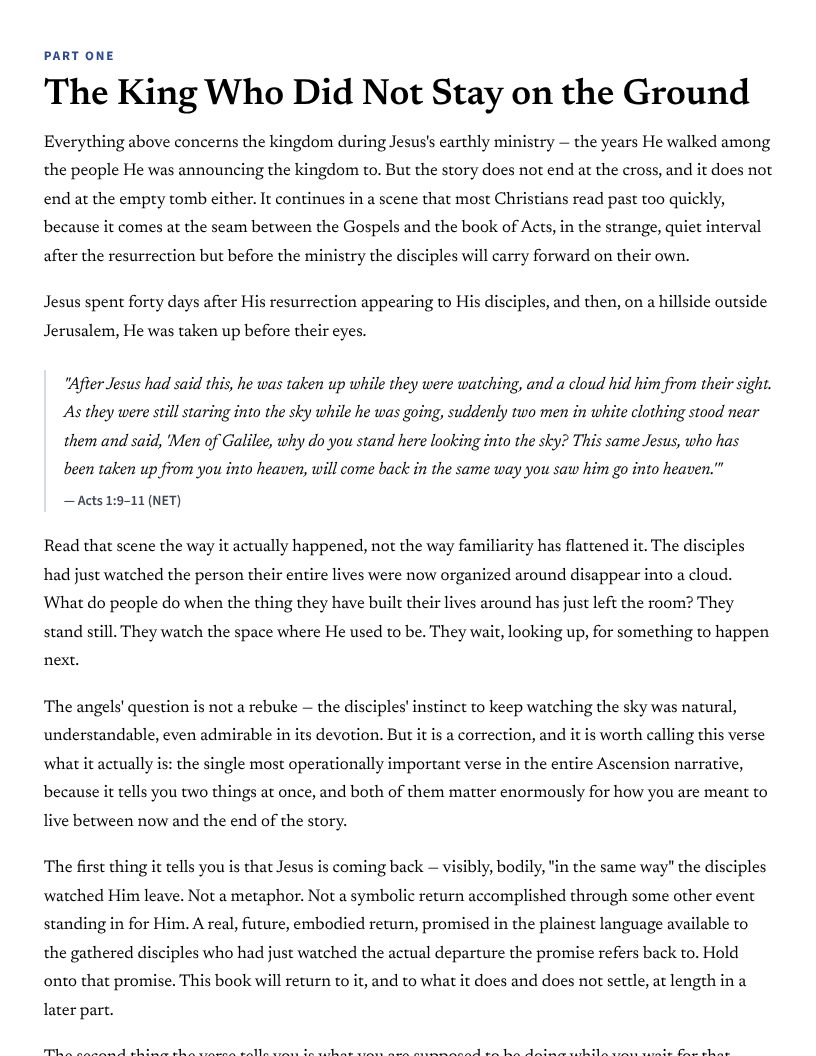
Search
Where: The search box at the top of every page, and the Search page.
Type your words and press Search. Every page that has all of your words is a result, the closest first. Put a phrase in quotes to find those words side by side. A result opens with your words marked. The Denominational Mapping Instrument and the prompt tools are searched too. Show only narrows the results to one part of the site.
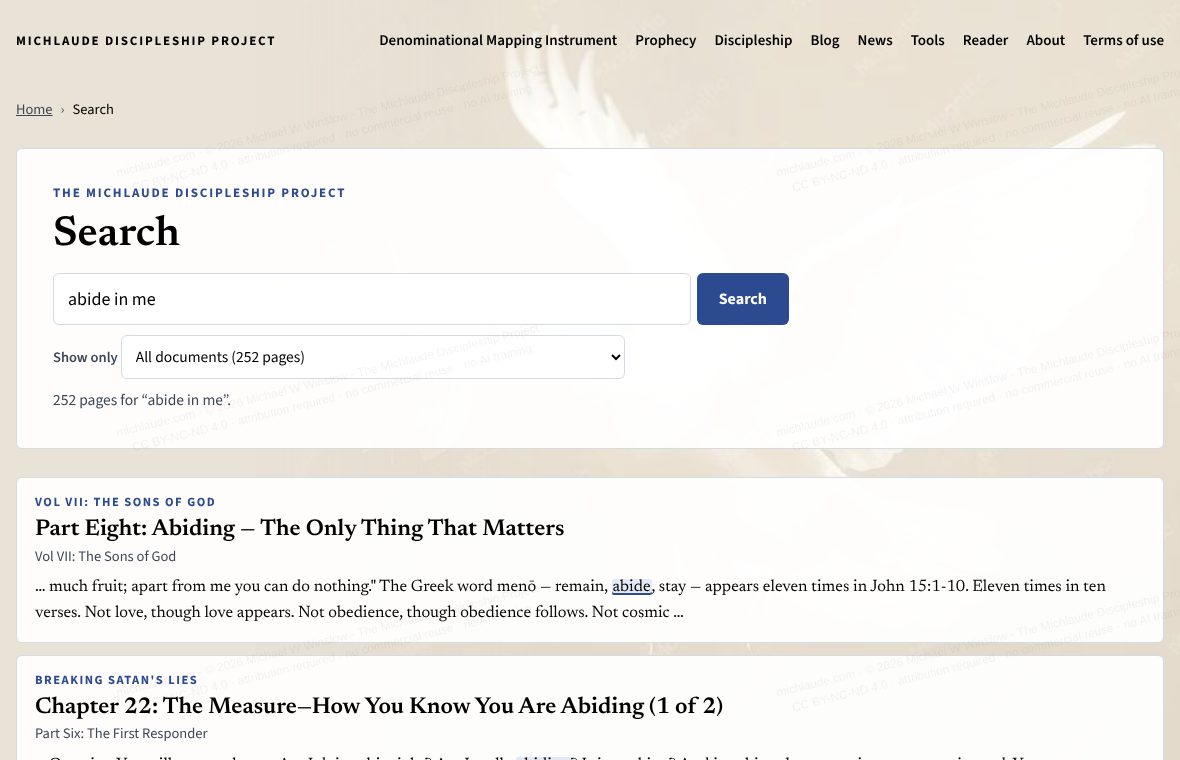
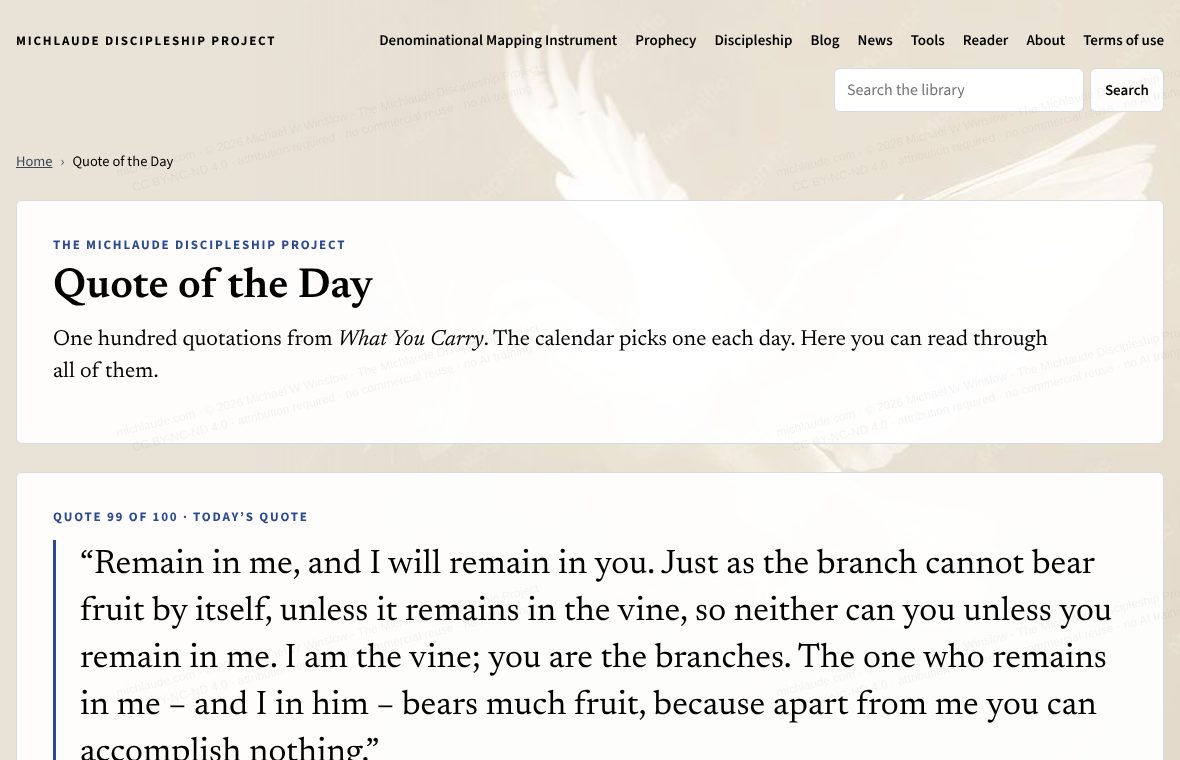
Quote of the Day
Where: The home page, the Discipleship page and the Quotes page.
There are one hundred quotations from What You Carry. The calendar picks one each day for the home page. Read it in context opens the book at that passage with the quotation marked.
On the Quotes page you can read through all of them with Previous, Next and Today’s quote, or the left and right arrow keys.
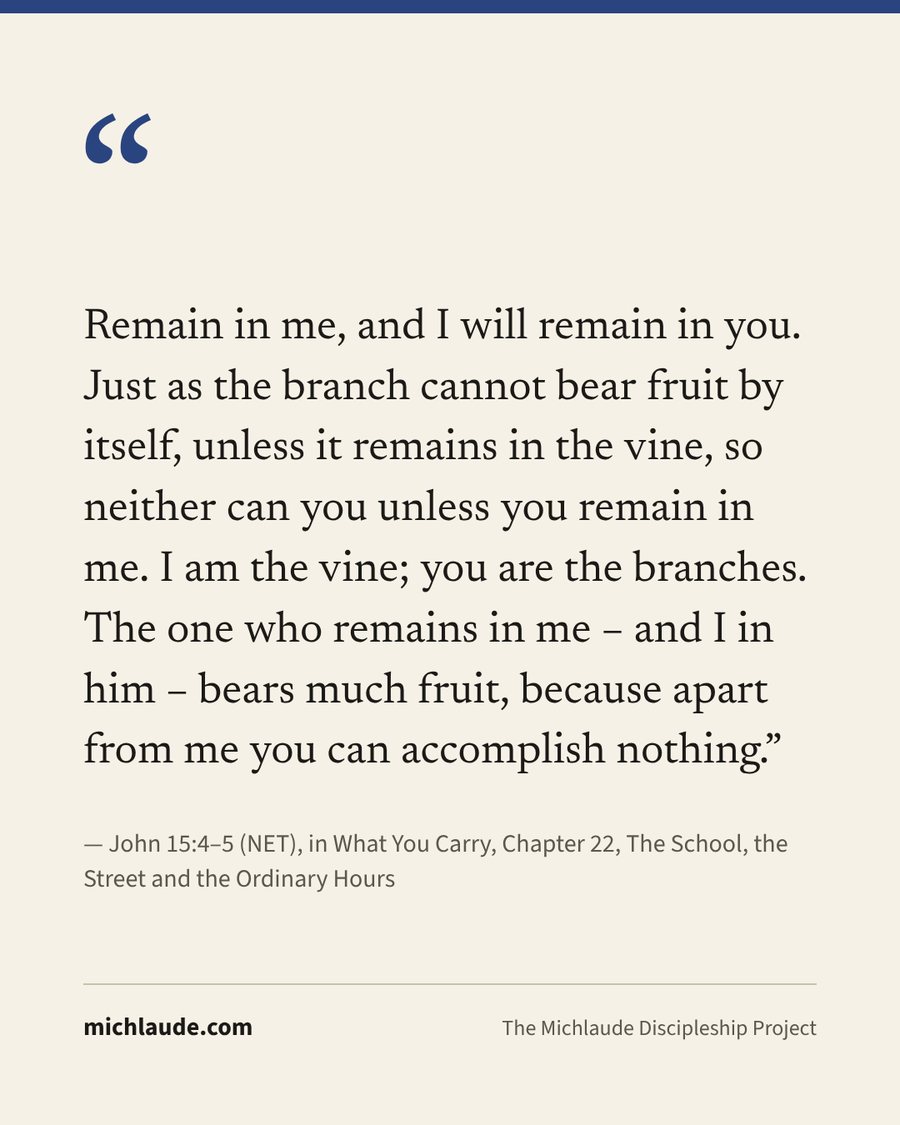
Make a picture to share draws the quotation on a card, with its source and the site’s name, ready to post. On a phone it opens the share sheet; on a computer it saves a picture file to your downloads. The picture is made in your own browser; nothing is uploaded.
The Denominational Mapping Instrument
Where: The DMI.
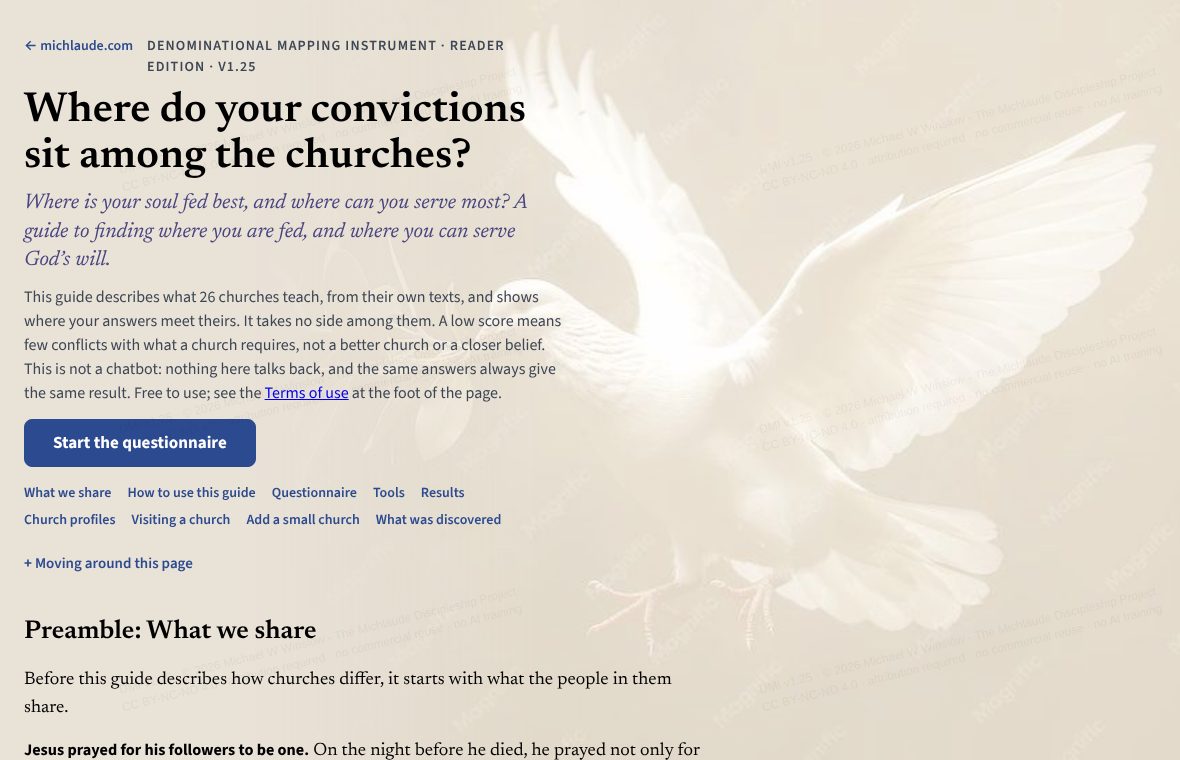
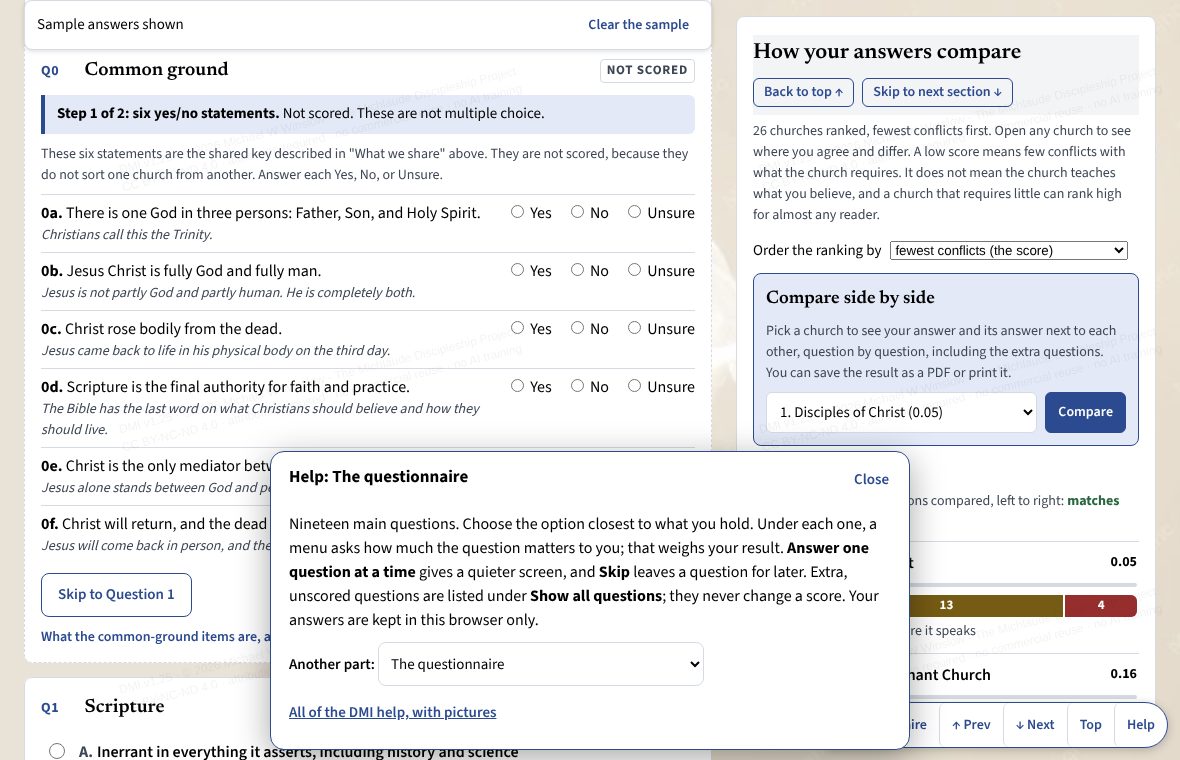
Answer 19 questions once and see where your convictions match, where churches leave the question open, and where they would require something you do not hold, across 26 church bodies, drawn from their own official documents. There is no chatbot and no ranking of the best church.
- Press Start the questionnaire and answer one question at a time. Skip leaves a question for later.
- Press See my results to see how each church body lines up with your answers.
- Use Compare to set two churches side by side, and open a profile to read what a church says on each question, with its sources.
- Save as PDF and Print this profile make a copy of a profile. Save my creed as PDF turns your answers into a personal creed.
- To come back later, use Copy code to get a code for your answers and Load code to bring them back. Load sample answers shows how the results look. Clear all answers starts over.
The DMI has its own terms of use and privacy paragraph. Your answers stay in your browser.
Part by part
On the DMI page itself, the Help button in the bar at the foot of the screen (or the ? key) opens a short note about the part you are in. These are the same notes.
- The top of the page
- The start of the guide. Press Start the questionnaire to begin, or use the links under it to jump to a part of the page. Moving around this page opens a list of every part.
- What the people in all these churches share, before the guide describes how they differ. It is read, not scored.
- How to use this guide
- What the guide does and does not do. It compares your answers with what each church teaches in its own documents. It does not say which answers are correct, rank anyone’s faith, or tell you where to worship, and it measures stated teaching only.
- The questionnaire
- Nineteen main questions. Choose the option closest to what you hold. Under each one, a menu asks how much the question matters to you; that weighs your result. Answer one question at a time gives a quieter screen, and Skip leaves a question for later. Extra, unscored questions are listed under Show all questions; they never change a score. Your answers are kept in this browser only.
- Tools: save, sample, creed, start from a church
- Open this to choose the church you attend now, copy a save code to move your answers to another device (Load code brings them back), Load sample answers to see how results look, Clear all answers to start over, and Save my creed as PDF to turn your answers into a personal creed.
- Results
- The churches whose documents conflict least with your answers, in an order you can change (fewest conflicts, most matches, or where the church speaks). A church that requires little can rank high for almost anyone, so read the matches and the differences, not just the order. Share your result makes a picture or text with only the top three church names; nothing is sent until you press a button. Compare sets one church beside your answers.
- Comparing two churches
- A full-screen view with your answer and the church’s answer side by side for every question, marked match, open or differs. Use the filter to show only the differences, the arrows to move between questions, and Save as PDF or Print this profile to keep a copy. Close returns you to where you were.
- Church profiles
- One entry for each church body: key facts, and what the church says on each question in its own words, with the source. Open one at a time. The church picker above them jumps to a church. Start from a church’s answers (above the questionnaire) loads a church’s answers so you can see how you would differ from it; Undo restores yours.
- Questions to ask when you visit a church
- Questions to ask when you visit a church. They are not scored and do not match you to a church; they cover things a written statement cannot tell you, such as what happens when members disagree.
- Add a small church
- For a small church that is not among the 26. The pastor or governing body answers the questionnaire from the church’s own documents, saves the creed, and sends it with the details listed there.
- What was discovered
- What the research found and what it means when you read a score. Facts come first; a conclusion drawn from them starts with the word “Judgment,” so you can see what is sourced and what is opinion.
- A closing word
- The author’s closing word: use the guide to understand other churches before you argue with them, and to pray for them by name.
- Terms of use and privacy
- The terms for sharing the guide, and a plain statement of what the page keeps. Your answers stay in this browser; nothing is sent to the author.
The blog
Where: The Blog.
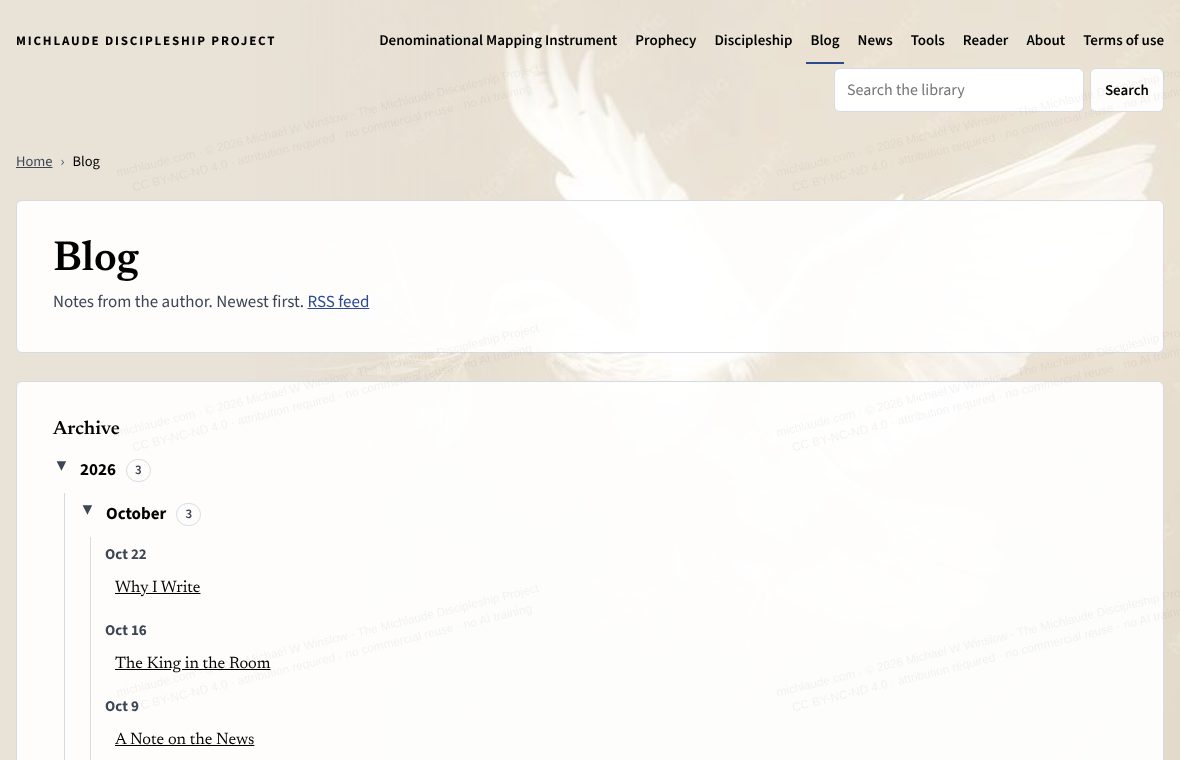
Short notes from the author, newest first. There is an archive by year and month and an RSS feed for feed readers. Longer posts can be read in pages like a book. Each post has Share on Facebook and Share link, and Reply to the author opens the contact form with the post chosen. Some posts carry a video.
News
Where: News.
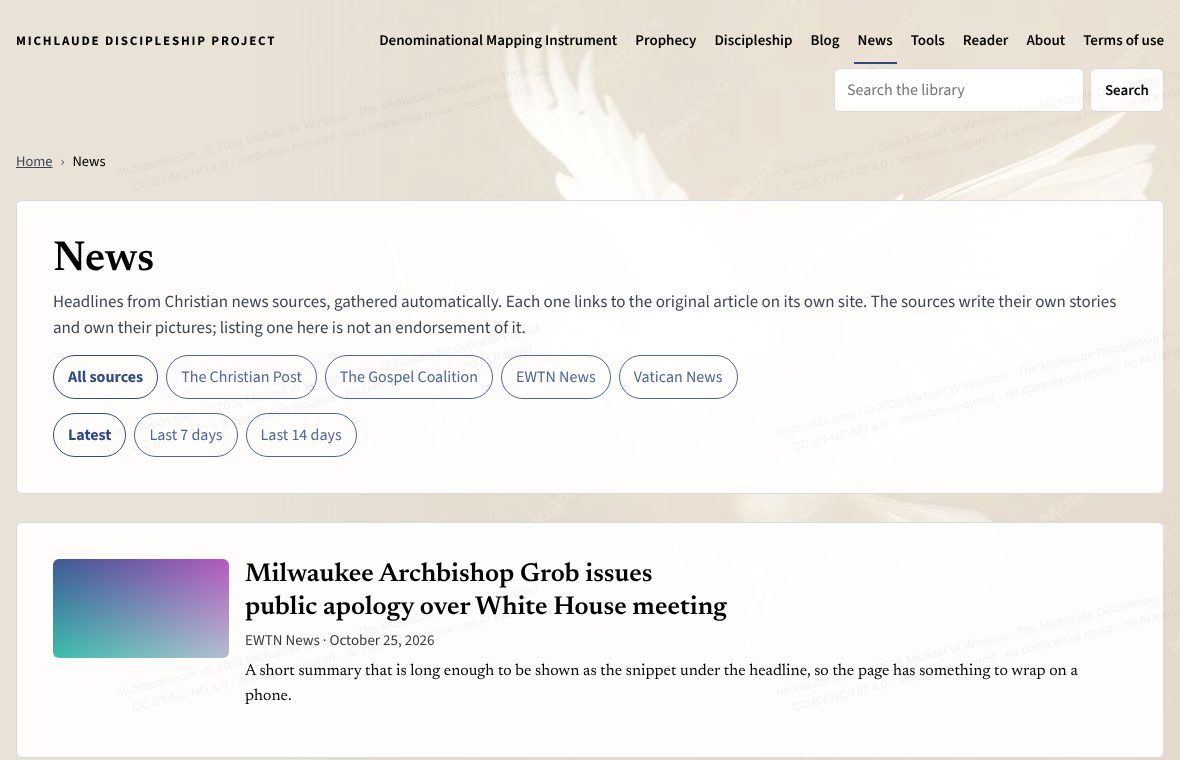
The newest headlines from Christian news sources, gathered in one place, with a small picture beside each when the source supplies one. The page keeps the last 14 days. Each headline links to the original article on the source’s own site; this site does not copy the articles.
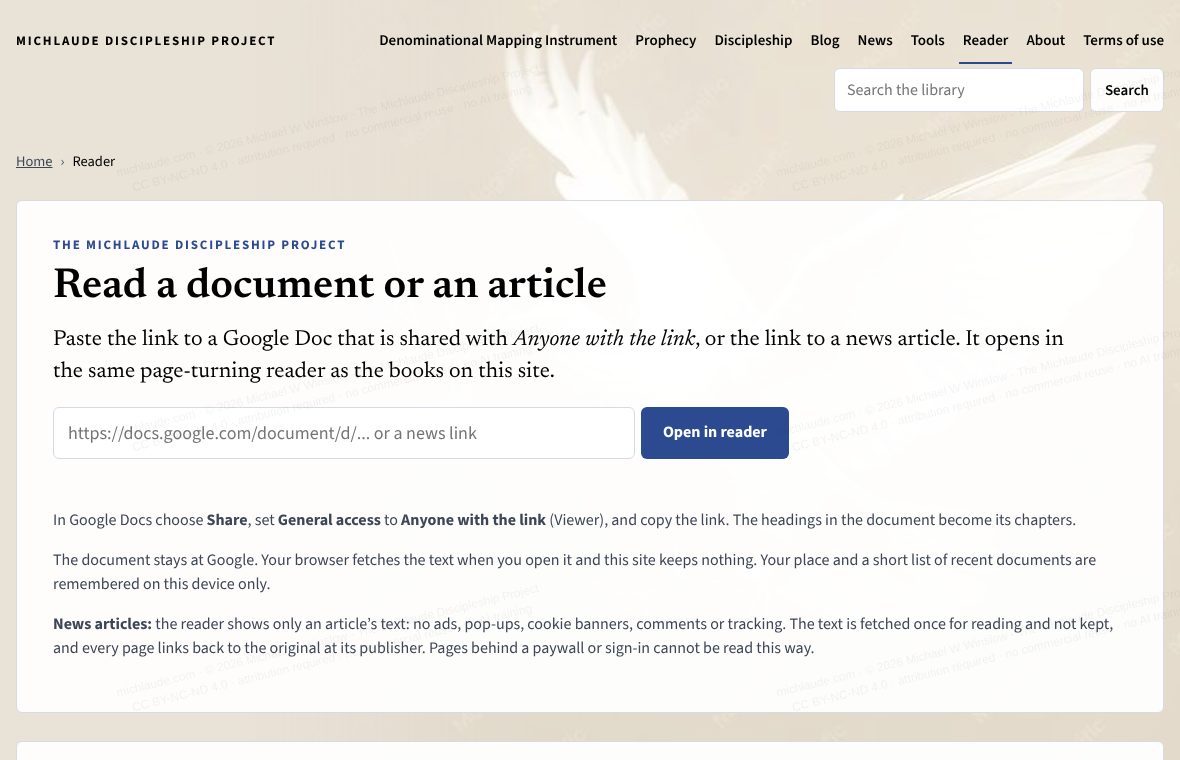
Read a document or an article
Where: Reader.
Paste the link to a Google Doc that is shared with Anyone with the link, or the link to a news article, and press Open in reader. It opens in the same page-turning reader as the books. The headings of the document become its chapters. The document stays at Google; your browser fetches the text when you open it and this site keeps nothing. Your place and a short list of recent documents are remembered on this device only.
Prompt tools
Where: Tools.
A shelf of prompt-engineering tools. Each tool has a short statement of its purpose, the full text to read, and a download as a .md or .txt file. The site search looks inside the tools too.
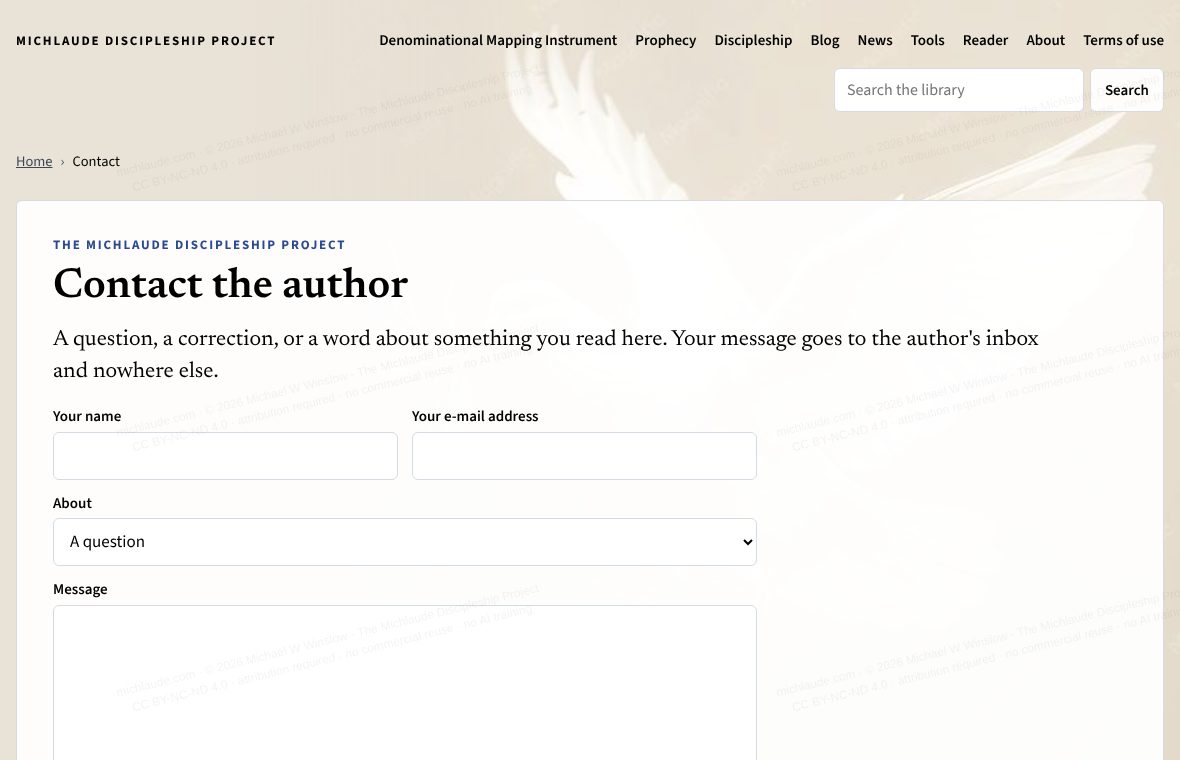
Contact the author
Where: Contact.
Choose what your message is about, write it, and press Send message. It goes to the author’s inbox and nowhere else. A reply, if one is needed, comes from another address, so check your spam folder.
What the site remembers on your device
Where: Your browser only.
Page view or scroll view; the last part you read in each book and how far; the answers in the DMI (in your browser, and in one cookie limited to the DMI’s own pages); and the documents you opened in the Reader. None of it is sent to the site. The site shows no ads and counts visits with Cloudflare Web Analytics, which sets no cookies. The Terms of use say more.