

A Walk Through The Whole Story: Every Button, Explained
On this page (8 sections)
The Whole Story is a timeline that runs from the beginning of the universe to what the Bible says we are waiting for. It lives on two charts. Chart 1, Deep Time, covers the whole span, from the universe to the start of writing. Chart 2, One Timeline, Many Readings, follows Israel's record to the first century and then shows where the main readings part ways. A picture on the right follows the text as you read. This is a guided tour of every button, with screenshots. To follow along, open it at michlaude.com/timeline. It works best on a large-screen PC, where the picture and the text sit side by side. Each screenshot has a Full size link under it.
What you are looking at
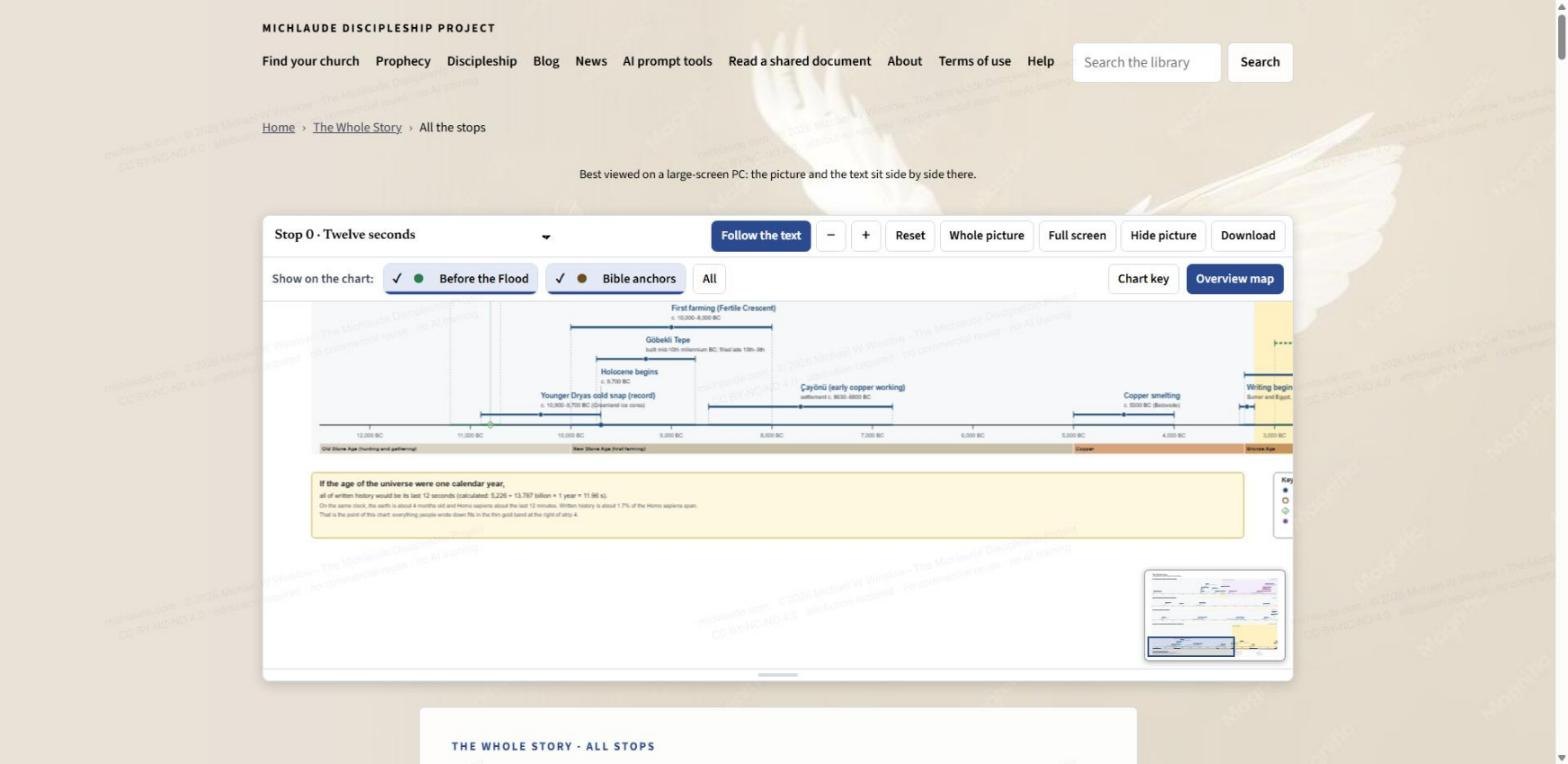
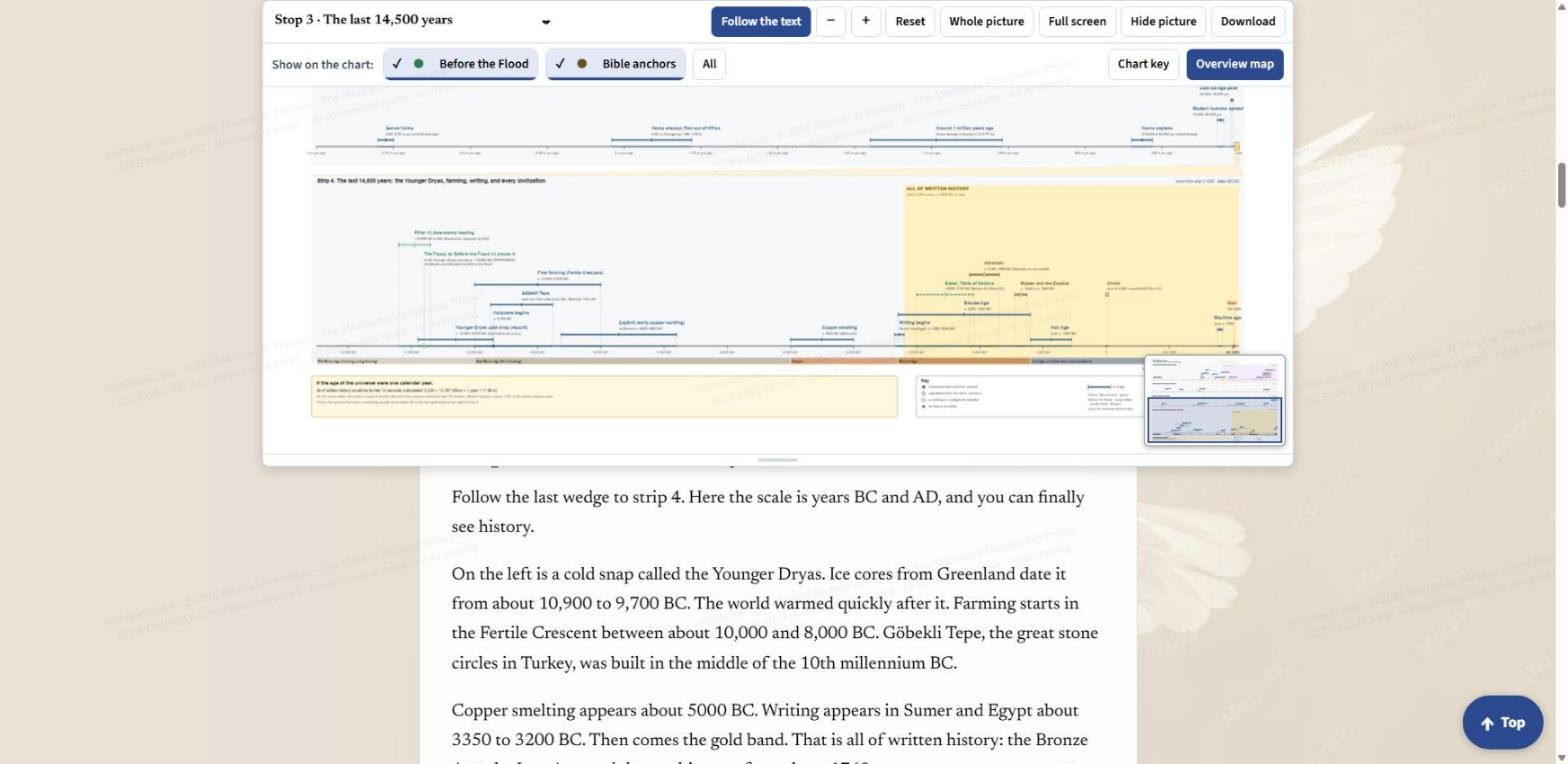
The page opens with a thought experiment: squeeze the history of the universe, 13.787 billion years, into one calendar year, and written history fits into the last twelve seconds. Chart 1 draws that squeeze on a single picture. Along the top are the strips for the age of the universe and the earth, 4.54 billion years, with a red line marking now. Further down, the picture zooms in on the last 14,500 years: the Younger Dryas cold snap, the first farming, Gobekli Tepe, copper, and the first writing. Chart 2 then takes over with Israel's record from Abraham to the first century.
The toolbar, button by button
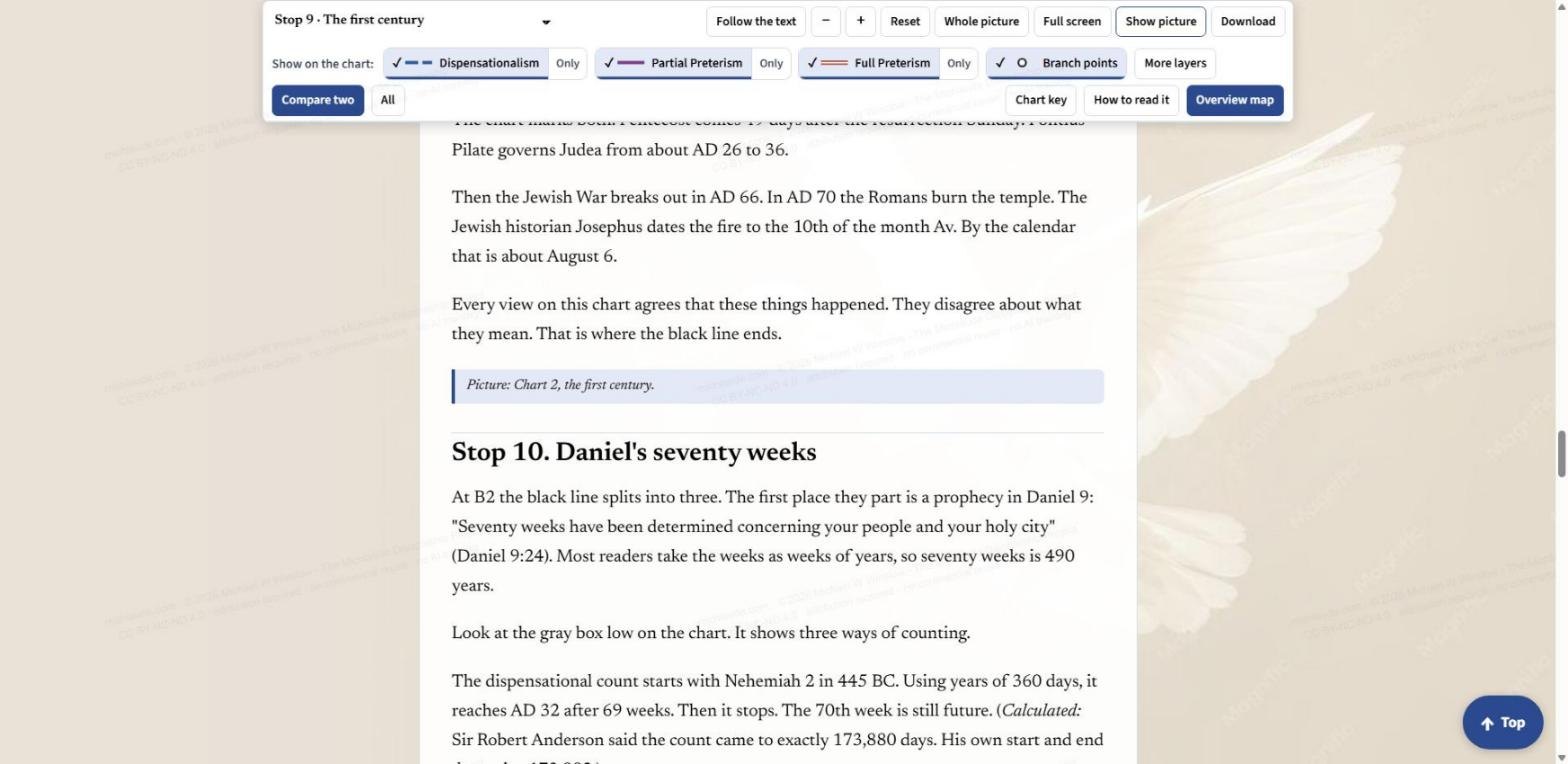
A row of buttons sits above the picture and stays in view as you scroll. From left to right:
- The stop menu. Lists the fifteen stops, from Stop 0, Twelve seconds, to Stop 14, The whole picture. Pick one and the picture jumps to it.
- Follow the text. When it is on (dark blue), the picture follows what you are reading. Scroll to a stop and the chart pans, zooms and switches to the layers that stop uses. The moment you click, drag or zoom the picture yourself, Follow turns off so the chart stays where you put it. Press the button again to hand control back to the text.
- Minus and plus. Zoom out and zoom in. You can also pinch, double-tap, or use the plus and minus keys on your keyboard.
- Reset. Takes the picture back to the framing for the stop you are on.
- Whole picture. Fits the entire chart in the pane.
- Full screen. Fills the window with the chart. An Exit full screen button takes you back.
- Hide picture. Folds the chart away so you can simply read. The button then says Show picture.
- Download. Opens the download menu, covered below.
Layers: choose what you see
The row labelled "Show on the chart" changes with the chart in view. On Chart 1 it has two layers: Before the Flood and Bible anchors. On Chart 2 it has five: Young earth, Old earth, Dispensationalism, Partial Preterism and Full Preterism, plus Branch points. Each of the five has its own colour and line pattern. A check mark means the layer is showing; click a button to show or hide it. Other buttons in the row:
- Only. Next to each reading. It shows just that reading's line while the shared black line of Israel's record and the bands across the top stay in place, so you can follow one view on its own.
- Compare two. Keeps no more than two readings on the chart at once. Pick a third and one of the two drops off, so you can set two side by side without the third crowding the picture.
- All. Turns every layer on.
- More layers and Fewer layers. Each stop opens with only the layers it uses. More layers adds the rest. Fewer layers takes them away again.
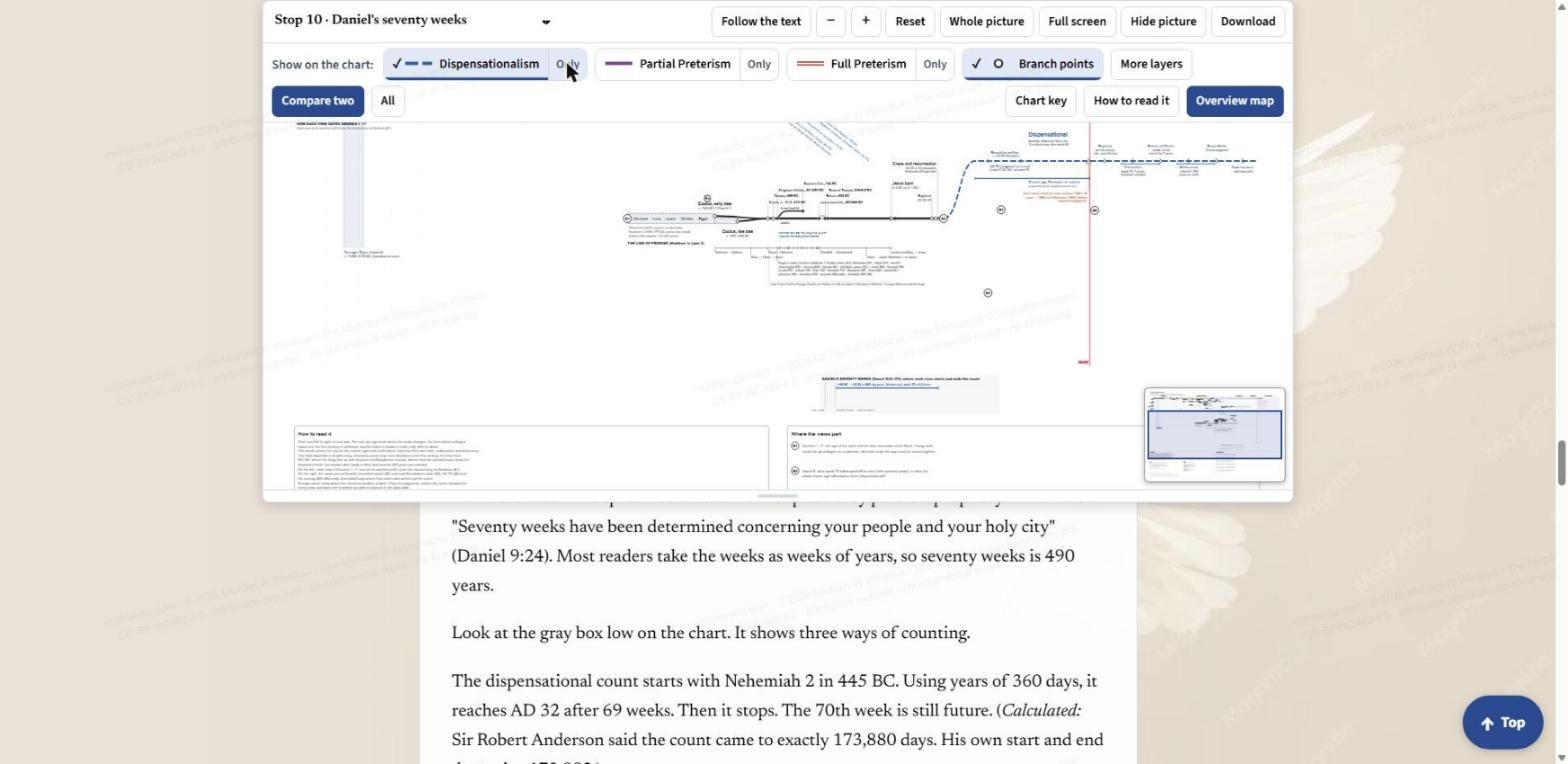
Chart key, How to read it, and the overview map
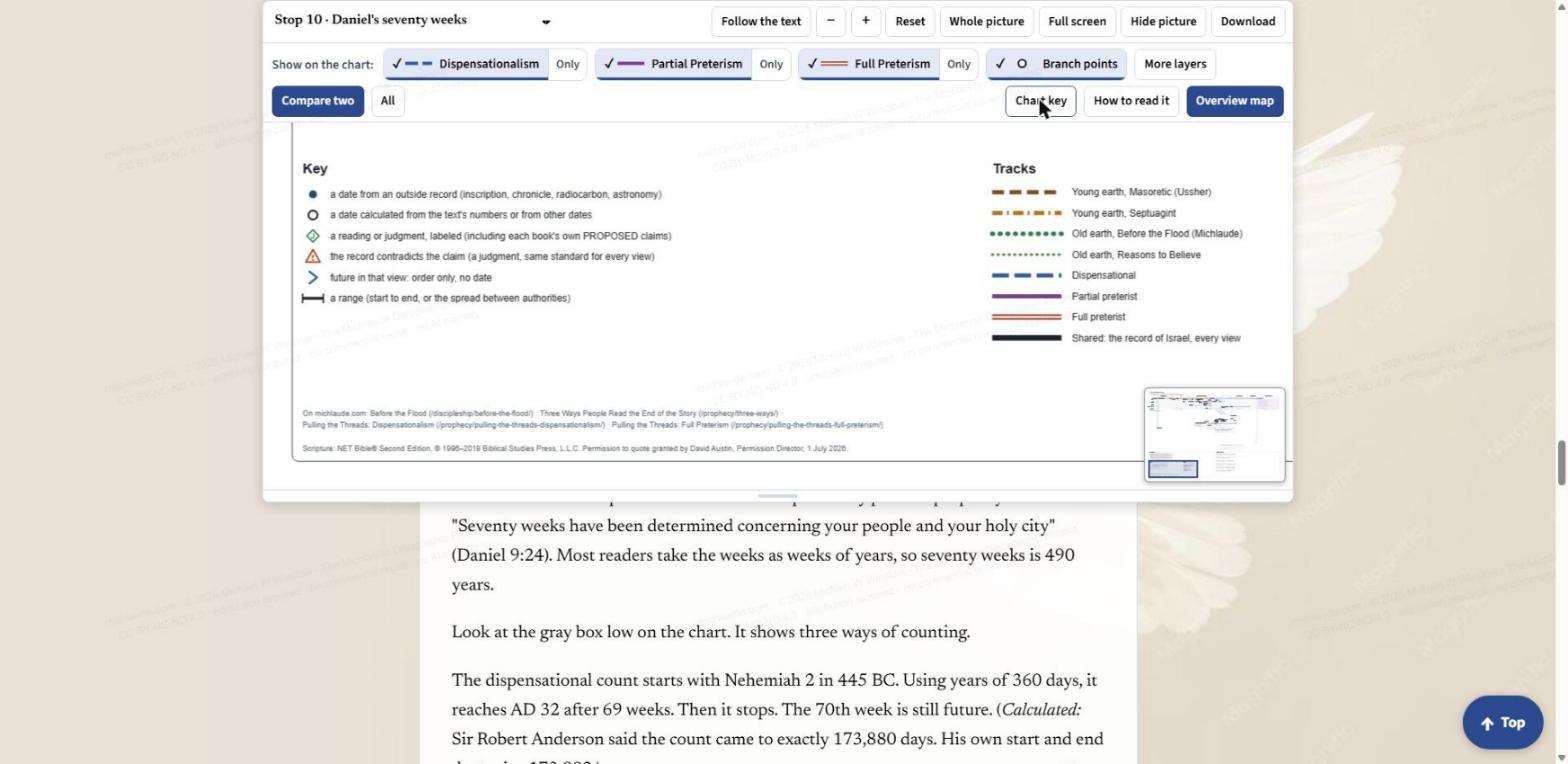
- Chart key. Moves the picture to the key printed on the chart. A solid dot is a date from an outside record, such as an inscription, a chronicle, radiocarbon or astronomy. An open circle is a date calculated from the text's own numbers. A diamond is a reading or judgment, labeled. A warning triangle marks where the record contradicts a claim. On the right, the Tracks list gives the colour and pattern of every line: Young earth (Masoretic, Ussher), Young earth (Septuagint), Old earth (Before the Flood), Old earth (Reasons to Believe), Dispensational, Partial preterist, Full preterist, and the black line shared by every view.
- How to read it. Moves the picture to the short guide printed on the chart.
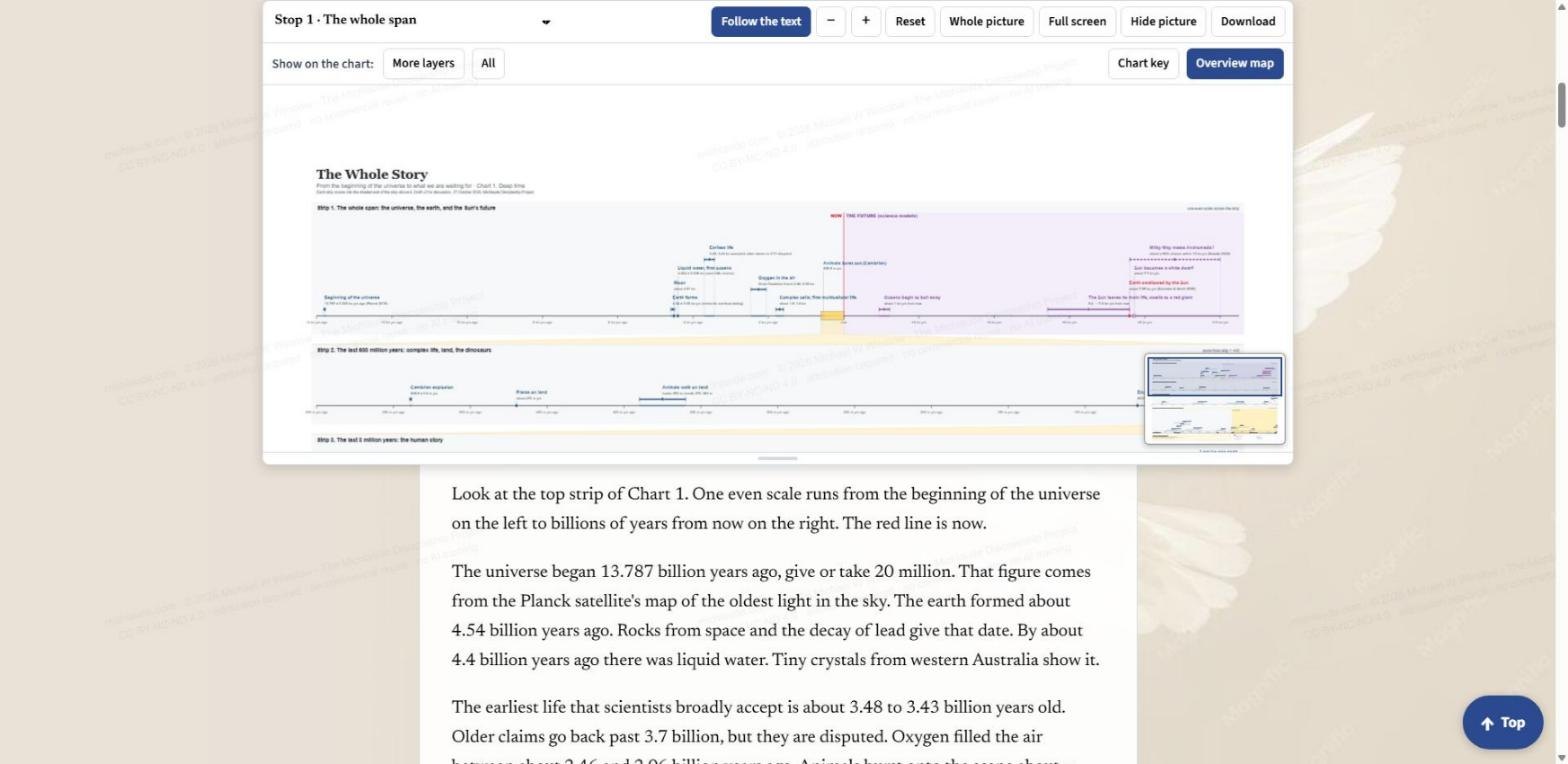
- Overview map. Shows or hides the small thumbnail in the corner of the picture. It is a map of both charts with a box on the part you are looking at, so you never lose your place when you zoom in.
Walking the stops
The text is divided into fifteen stops. Stop 0 is the twelve seconds. Stops 1 and 2 set out the whole span and the first life and the first humans. Stop 3 is the last 14,500 years, and Stop 4 the record across the top: ages and civilizations, dated by their own texts, radiocarbon and astronomy. Stop 5 reads Genesis 1 to 11 four ways, each as its own line. Stops 6 and 7 follow Abraham and the exodus and show where the story locks to the record. Stop 8 is the line of promise and Stop 9 the first century. Stops 10 to 13 are where the readings part: Daniel's seventy weeks, then the dispensational, partial preterist and full preterist lines. Stop 14 steps back to the whole picture.
Turn Follow the text on and just scroll. At Stop 3 the picture zooms in on the last 14,500 years. At Stop 5 it moves to the four colored lines for Genesis 1 to 11 and switches to the layers it needs. A "Top" button at the bottom right of the page takes you back to the start, with the site menu.
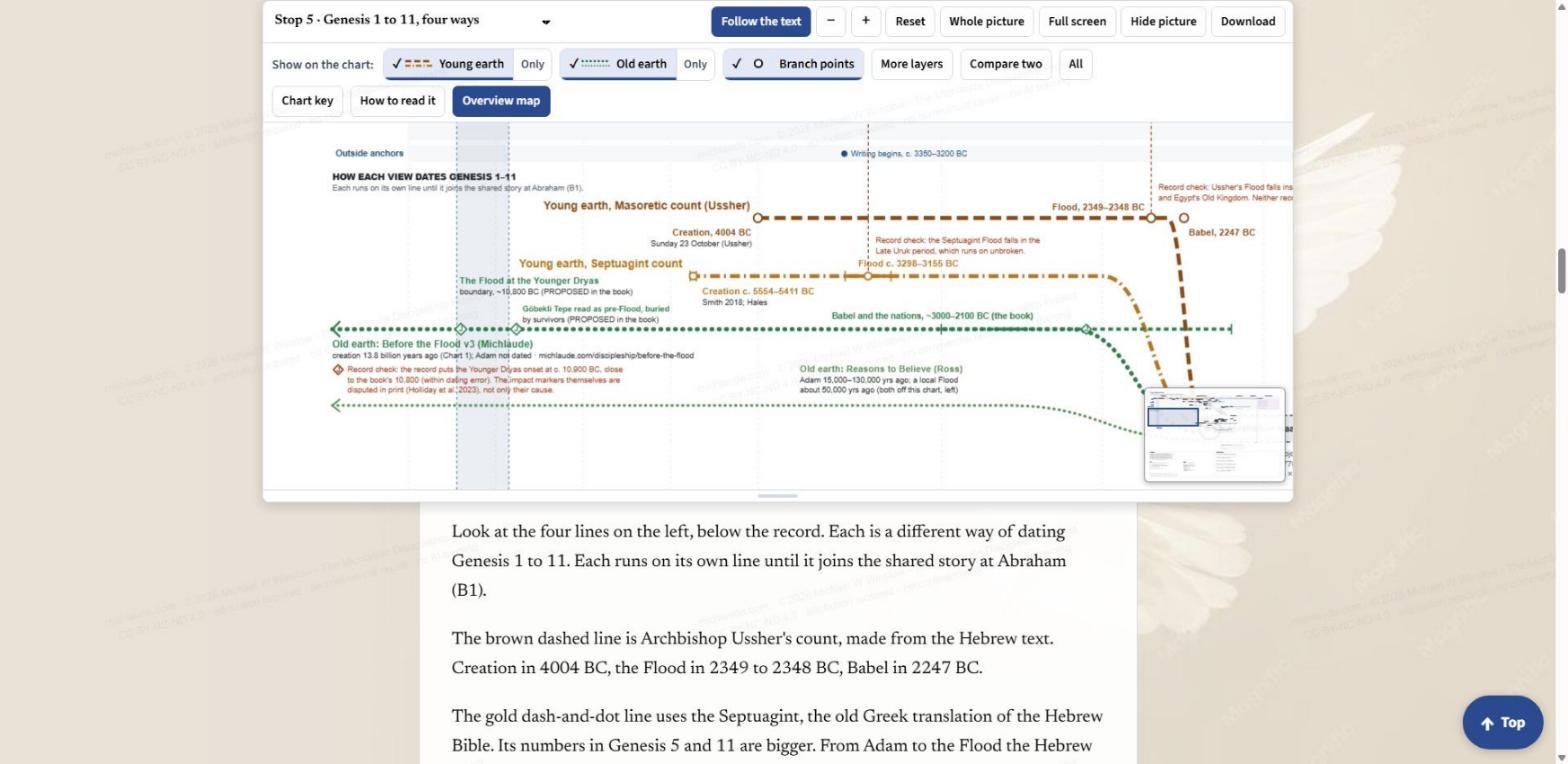
Stop 5 is a good one to slow down on. Archbishop Ussher's count from the Masoretic text puts Creation at 4004 BC, the Flood at 2349 to 2348 BC and Babel at 2247 BC. The Septuagint, the old Greek translation of the Hebrew Bible, gives larger numbers in Genesis 5 and 11. Two old-earth lines follow: Before the Flood, from this project, and the line used by Reasons to Believe. Each runs on its own line until it joins the shared story at Abraham.
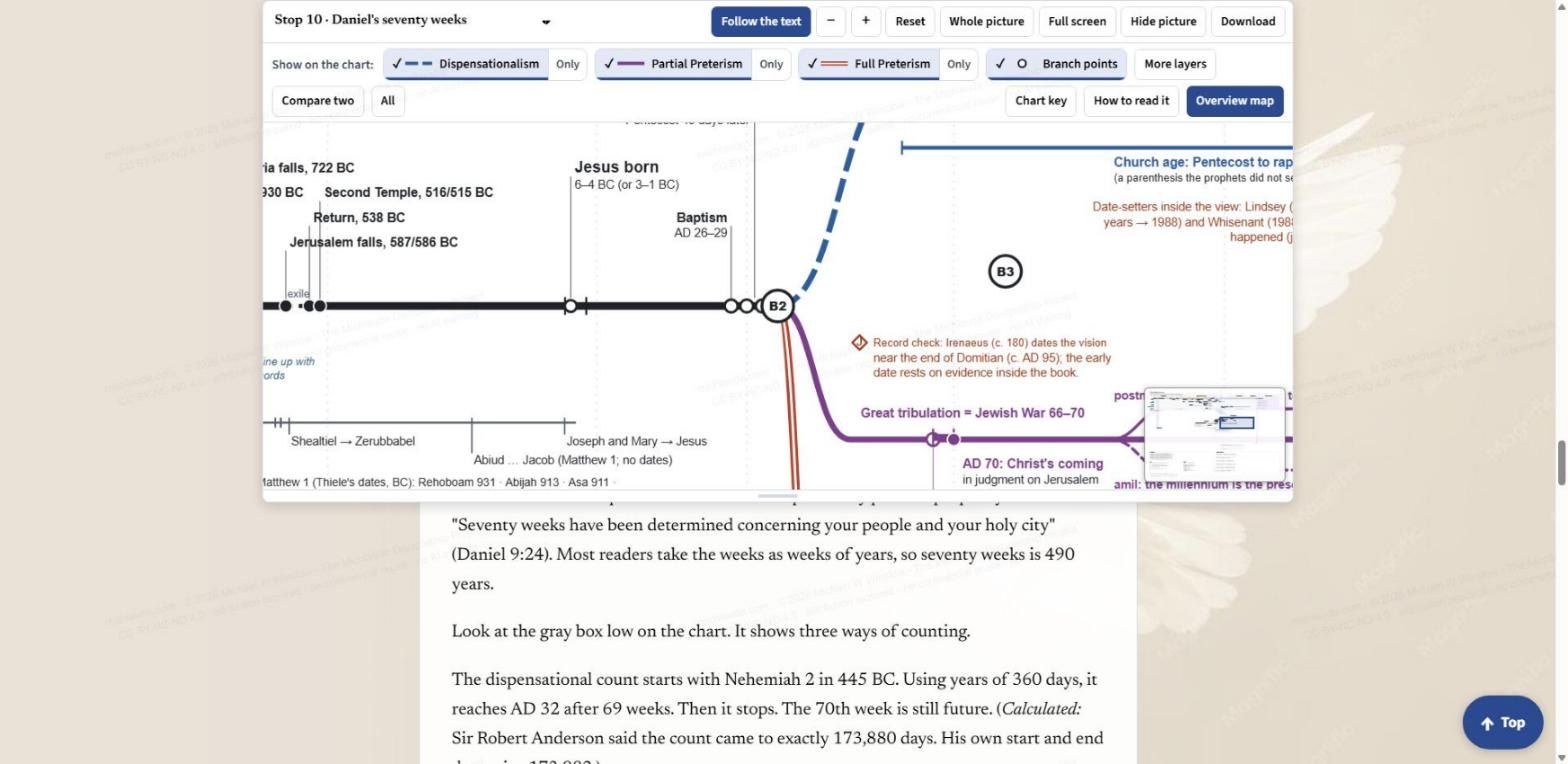
At Stop 10 the picture moves to Daniel 9, where the shared black line splits into the dispensational, partial preterist and full preterist readings. The dispensational count starts with Nehemiah 2 in 445 BC and, using years of 360 days, reaches AD 32 after 69 weeks. The chart does not say which reading is right. It shows where each one lands.
Full screen, Hide picture and Download
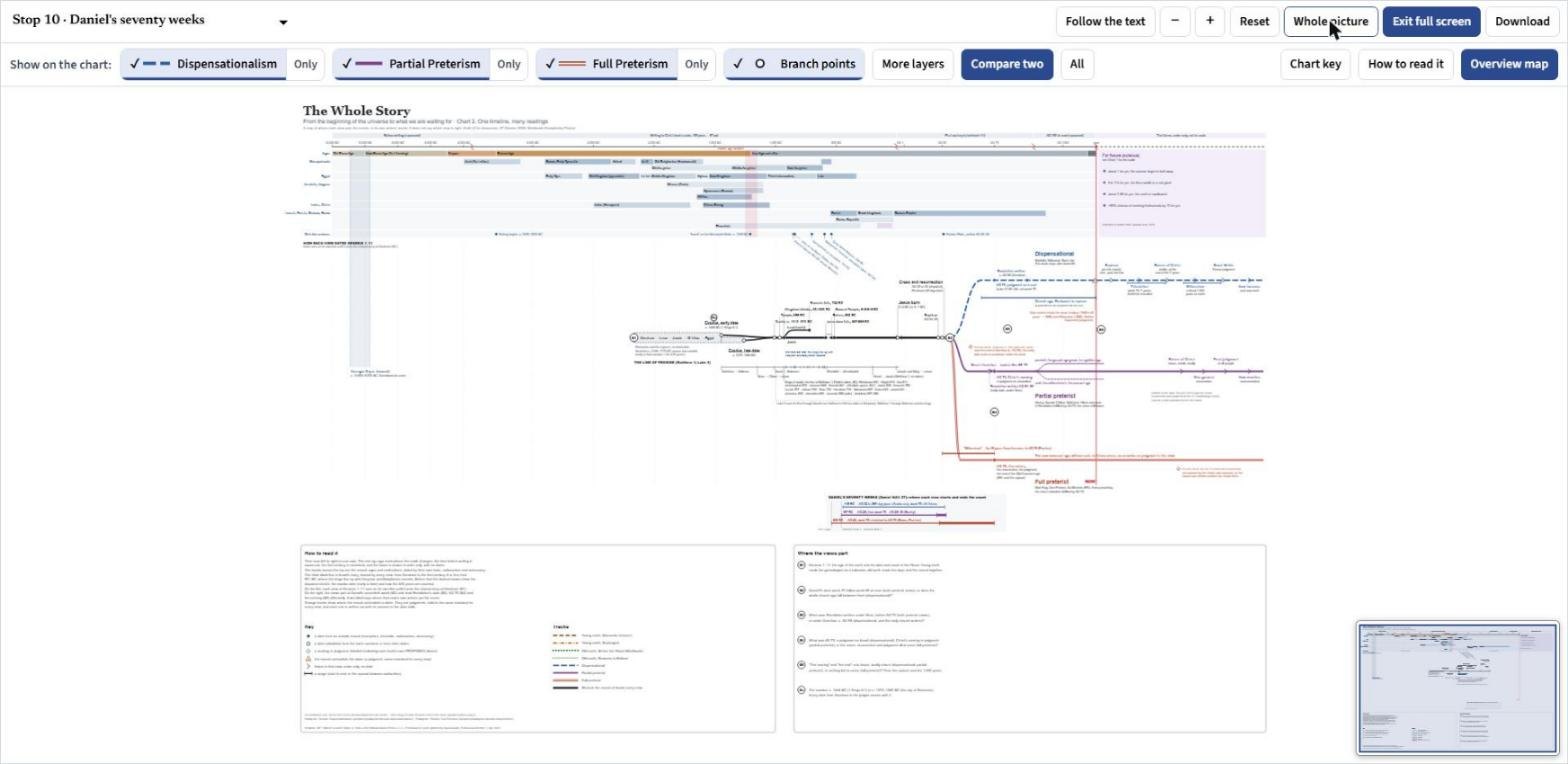
Full screen gives the chart the whole window. The toolbar and the layer buttons stay along the top, so everything above still works there. Whole picture, shown here, fits both charts at once, with the overview map at lower right.
Hide picture folds the pane away when you want to read without the chart. Press Show picture to bring it back.
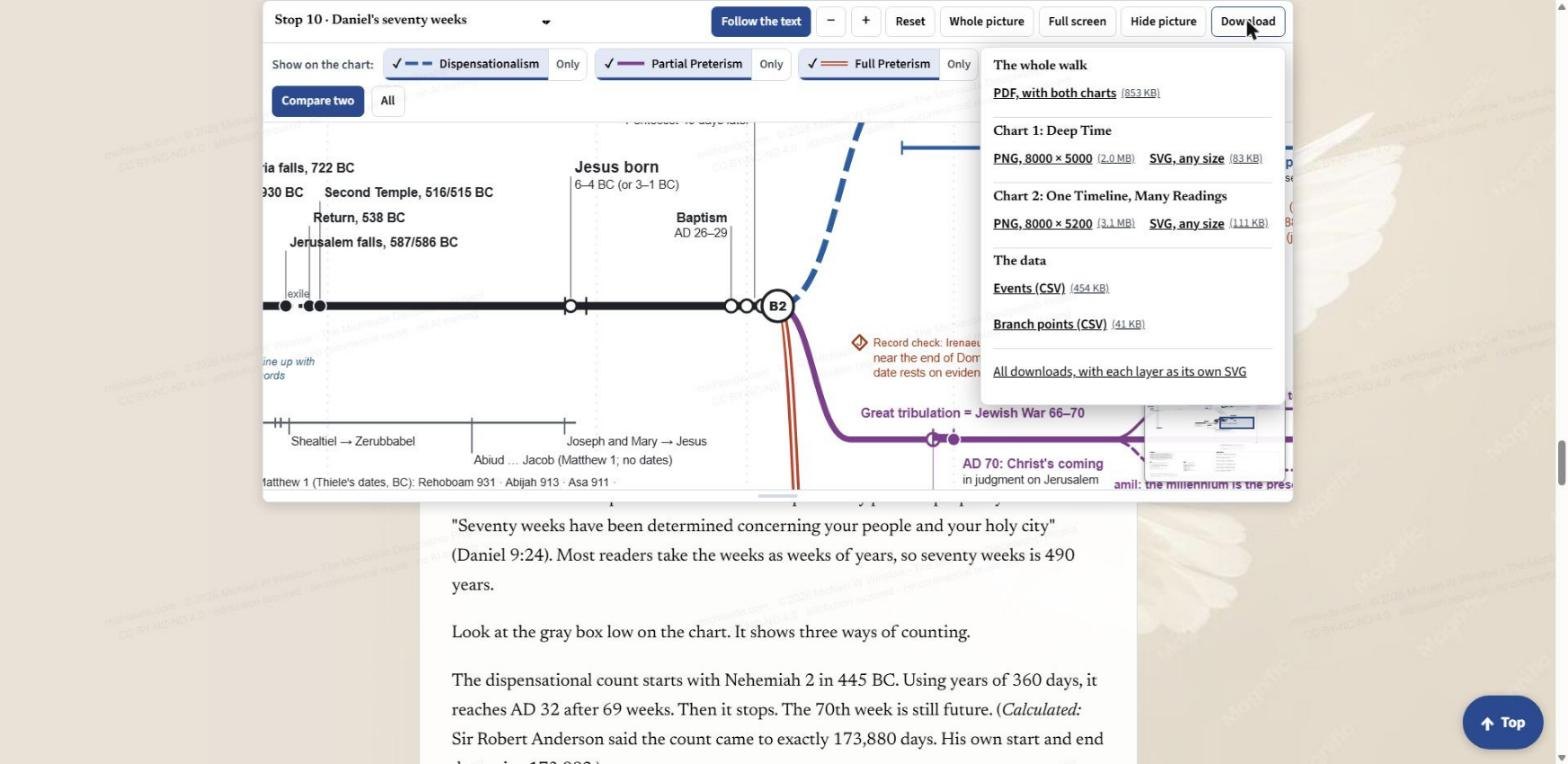
Download opens a menu. The whole walk comes as one PDF with both charts printed in it. Chart 1, Deep Time, and Chart 2, One Timeline, Many Readings, each come as an 8000-pixel-wide PNG or as an SVG you can scale to any size. The data behind them comes as two CSV files: the events and the branch points. A link at the bottom leads to the page where each layer is its own SVG, so you can lay them over each other.
Moving around the picture
Drag the picture to move it. Pinch, double-tap, or use the plus and minus keys to zoom. Under the picture there is a small handle: drag it, or use the up and down arrow keys, to make the picture taller or shorter.
A good way to start
Open The Whole Story, turn Follow the text on, and read Stop 0. Scroll slowly through the first nine stops, then press Only beside one reading, then another at Stop 10, and watch where each one lands. The chart will not tell you which reading to hold. It shows how much of the story every reading shares, and where exactly they part.
Share this post:Share on Facebook