

A Walk Through the DMI: Find Your Church, Step by Step
On this page (10 sections)
The Denominational Mapping Instrument (the DMI) shows where what you believe meets what 26 churches teach, taken from each church's own documents. It is more than a questionnaire. You can answer the questions and see how the churches line up, compare your answers with any one church, compare two churches with each other, read any church's answers with their sources, save your answers as a personal creed, and save a comparison as a PDF. Here is every part, step by step. Open it here: michlaude.com/dmi. It works best on a large-screen PC.
What you are looking at
The DMI describes what churches teach and shows where your answers meet theirs. It takes no side among them. A low score means few conflicts with what a church requires. It does not mean a better church or a closer belief. It is not a chatbot: nothing talks back, and the same answers always give the same result. Nothing you answer is sent anywhere. Your answers stay in your browser, on your device.
The start page
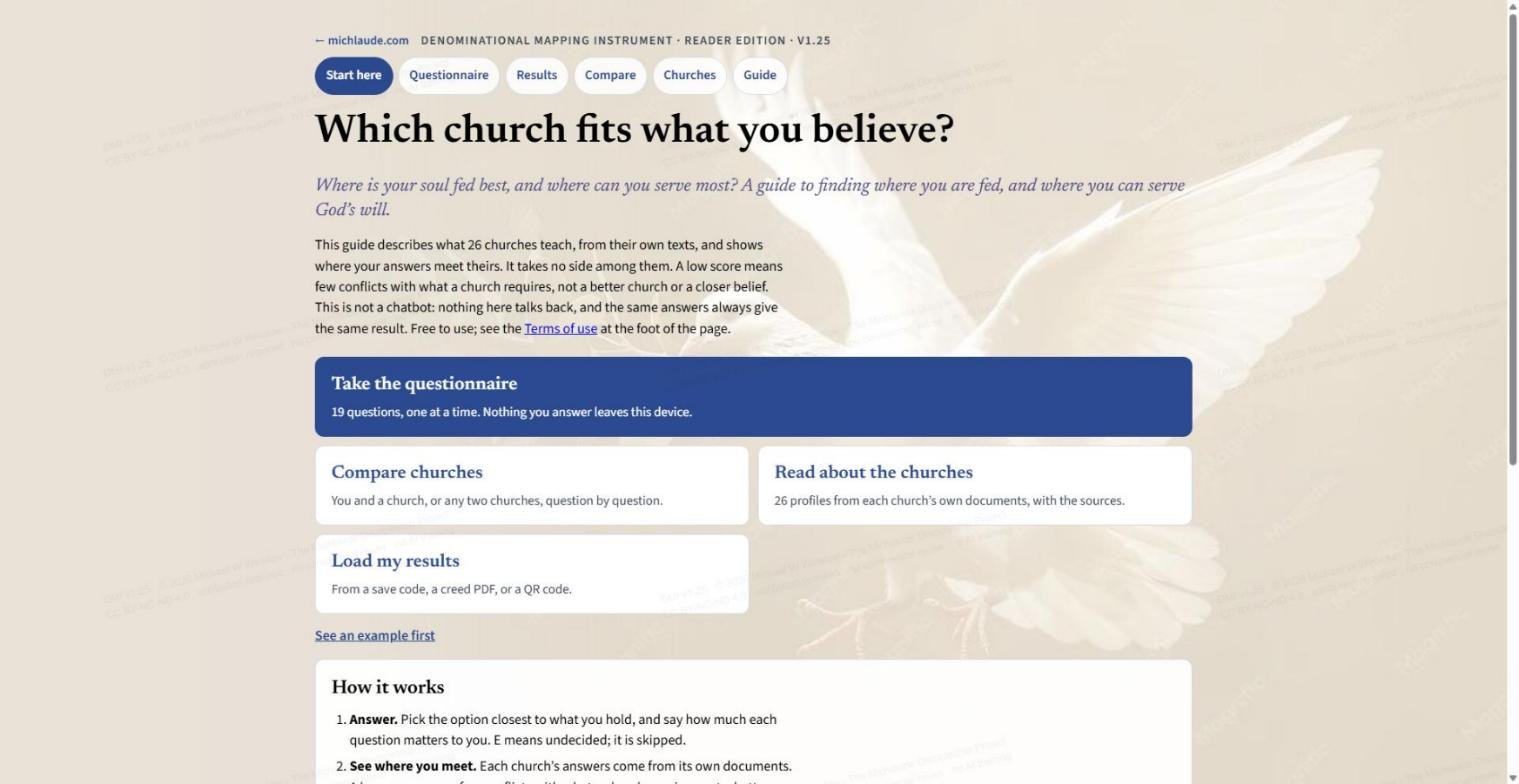
- Take the questionnaire. 19 questions, one at a time. Once you have answers, this door becomes Review my answers and a See my results door appears beside it.
- Compare churches. You and a church, or any two churches, question by question.
- Read about the churches. 26 profiles taken from each church's own documents, with the sources.
- Load my results. Bring back answers you saved, from a save code, a creed PDF or a QR code.
- See an example first. A sample respondent's results, so you can see what you will get. The example is never saved as yours.
Step 1: the questionnaire
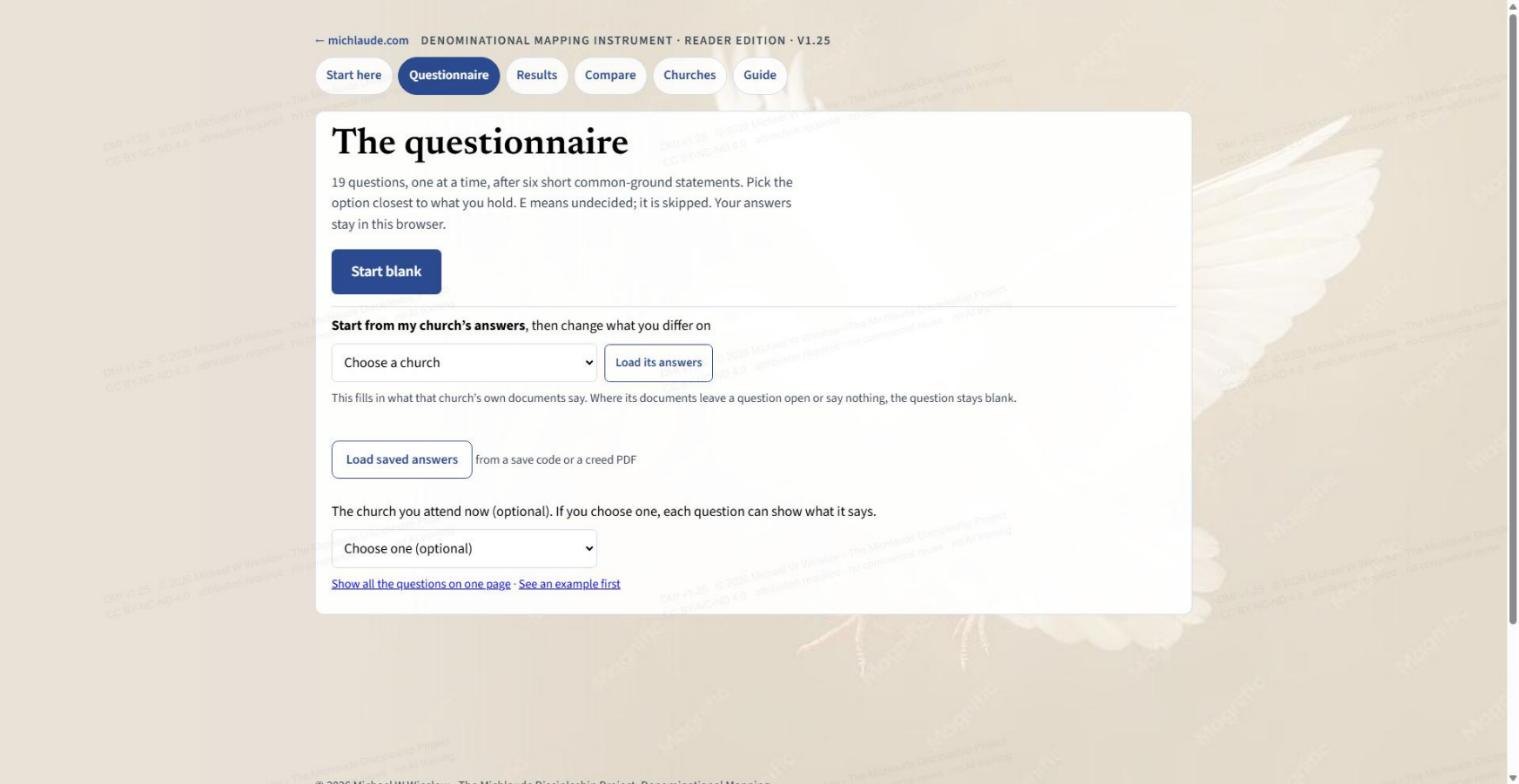
The opening screen gives you three ways in, and one optional setting.
- Start blank. You answer every question yourself.
- Start from my church's answers. Choose a church and press Load its answers. This fills in what that church's own documents say, and you change what you differ on. Where its documents leave a question open or say nothing, the question stays blank.
- Load saved answers. Use a save code or a creed PDF you made earlier.
- The church you attend now (optional). If you choose one, each question can show what that church says.
There is also Show all the questions on one page if you would rather not go one screen at a time.
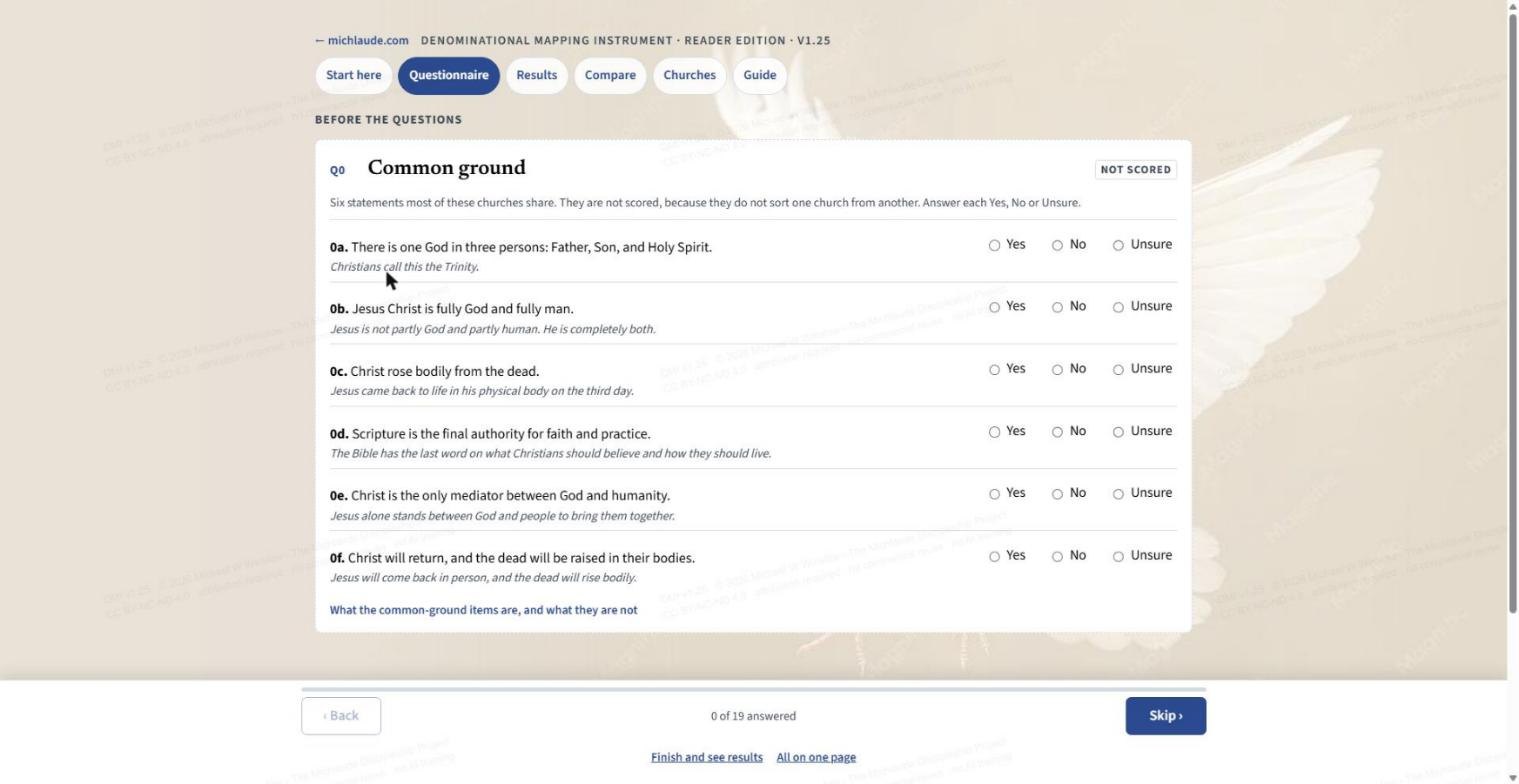
The first screen, Q0, is six statements most of these churches share: the Trinity, Christ fully God and fully man, the bodily resurrection, Scripture as the final authority, Christ as the only mediator, and Christ's return with the bodily resurrection of the dead. You answer Yes, No or Unsure. They are not scored, because they do not sort one church from another.
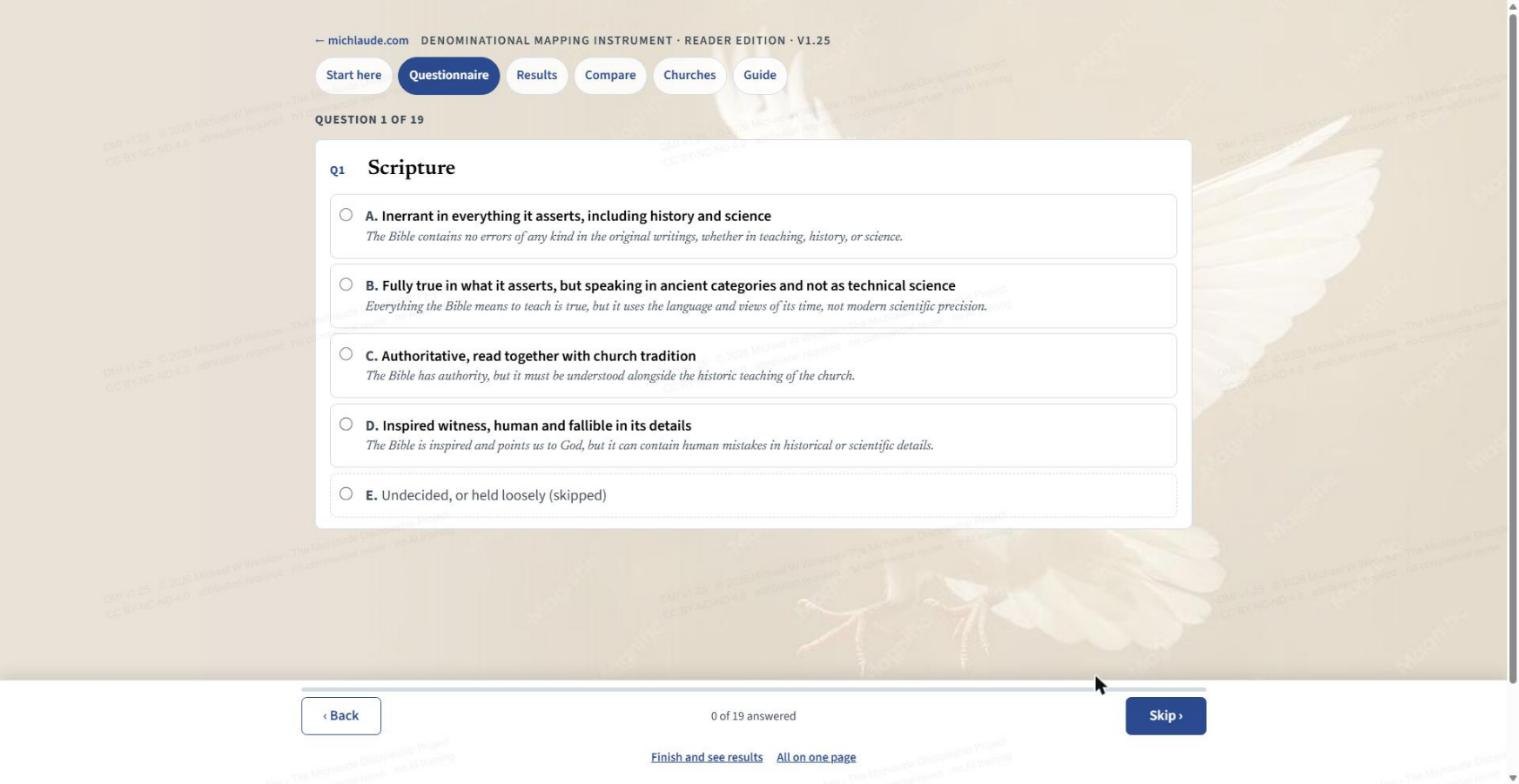
Then come the 19 scored questions, one per screen. Each option has a plain-language explanation under it. E means undecided or held loosely, and it is skipped. Some questions have a follow-up marked Not scored on the same screen. At the bottom you will find Back, Next (it reads Skip until you answer), a count such as "1 of 19 answered", Finish and see results and All on one page. There are no live results while you answer.
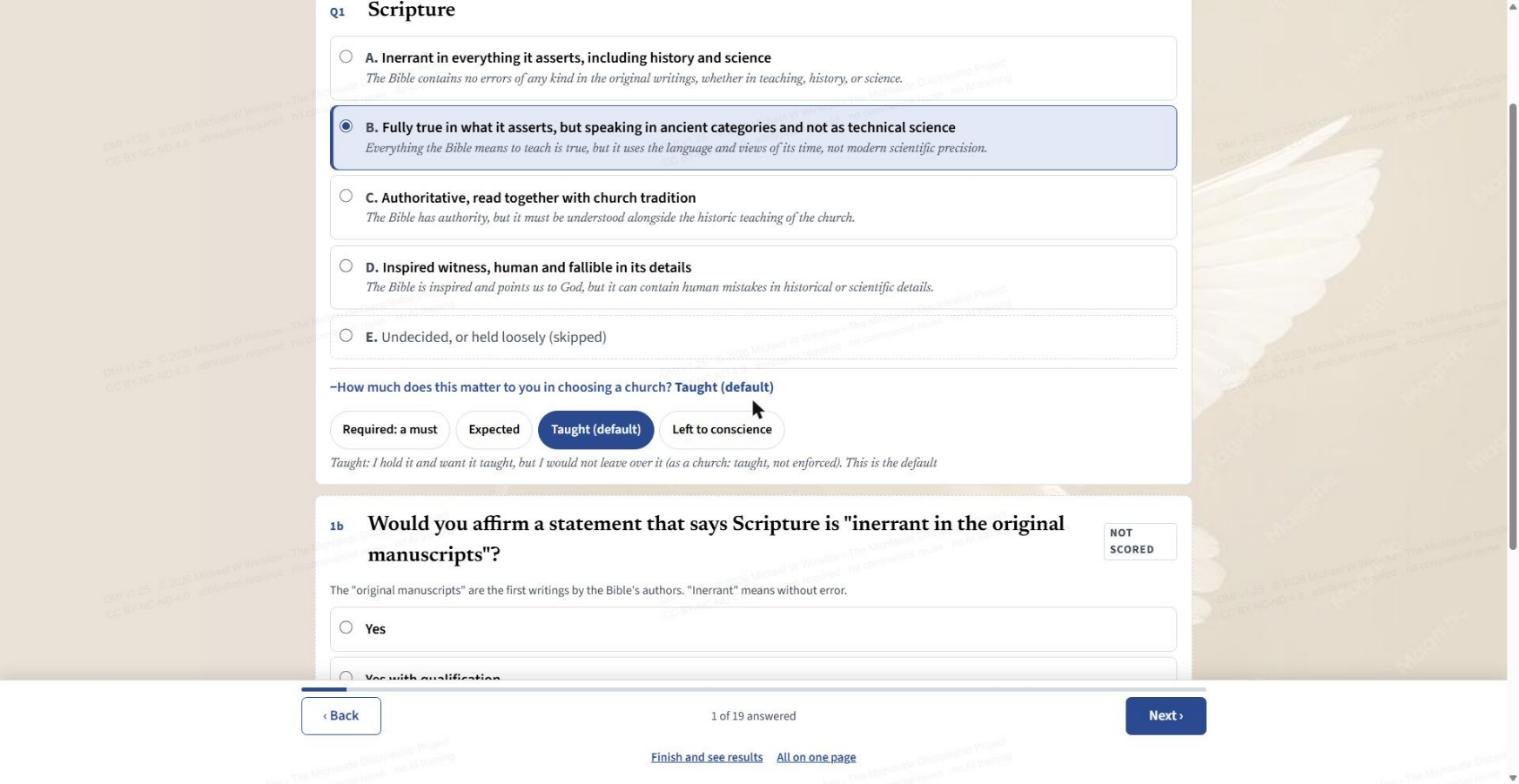
After you pick an answer, a folded line appears: How much does this matter to you in choosing a church? Open it and choose a level.
- Required: a must. "A must for me. I could not join a church that differs."
- Expected. "I expect a church I join to hold this."
- Taught (default). You hold it and want it taught, but you would not leave over it.
- Left to conscience. "I hold it, but it does not decide my choice of church."
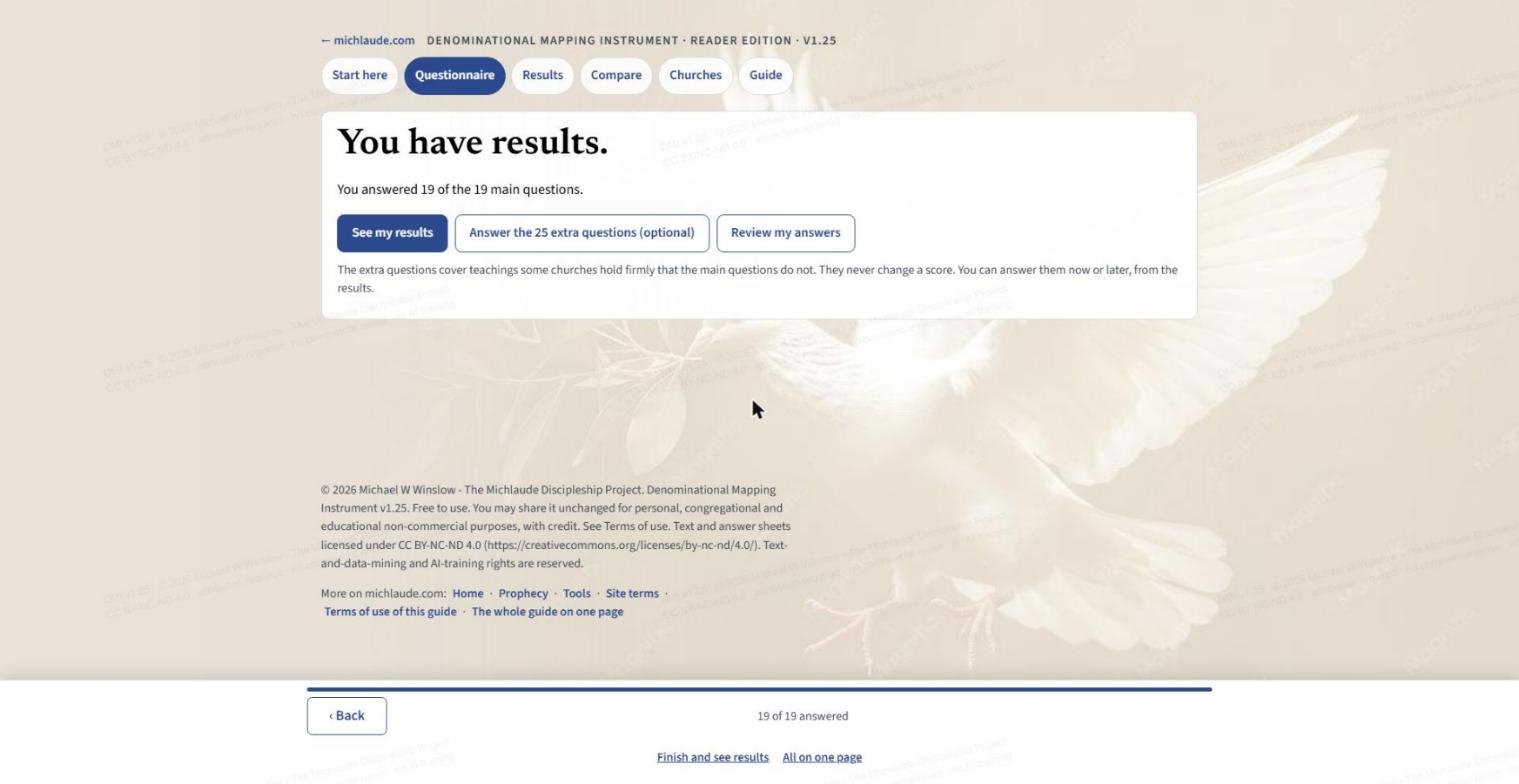
When the last question is done you see You have results. From here you can go to See my results, Answer the 25 extra questions (optional; they cover teachings some churches hold firmly that the main questions do not, and they never change a score), or Review my answers.
Step 2: your results
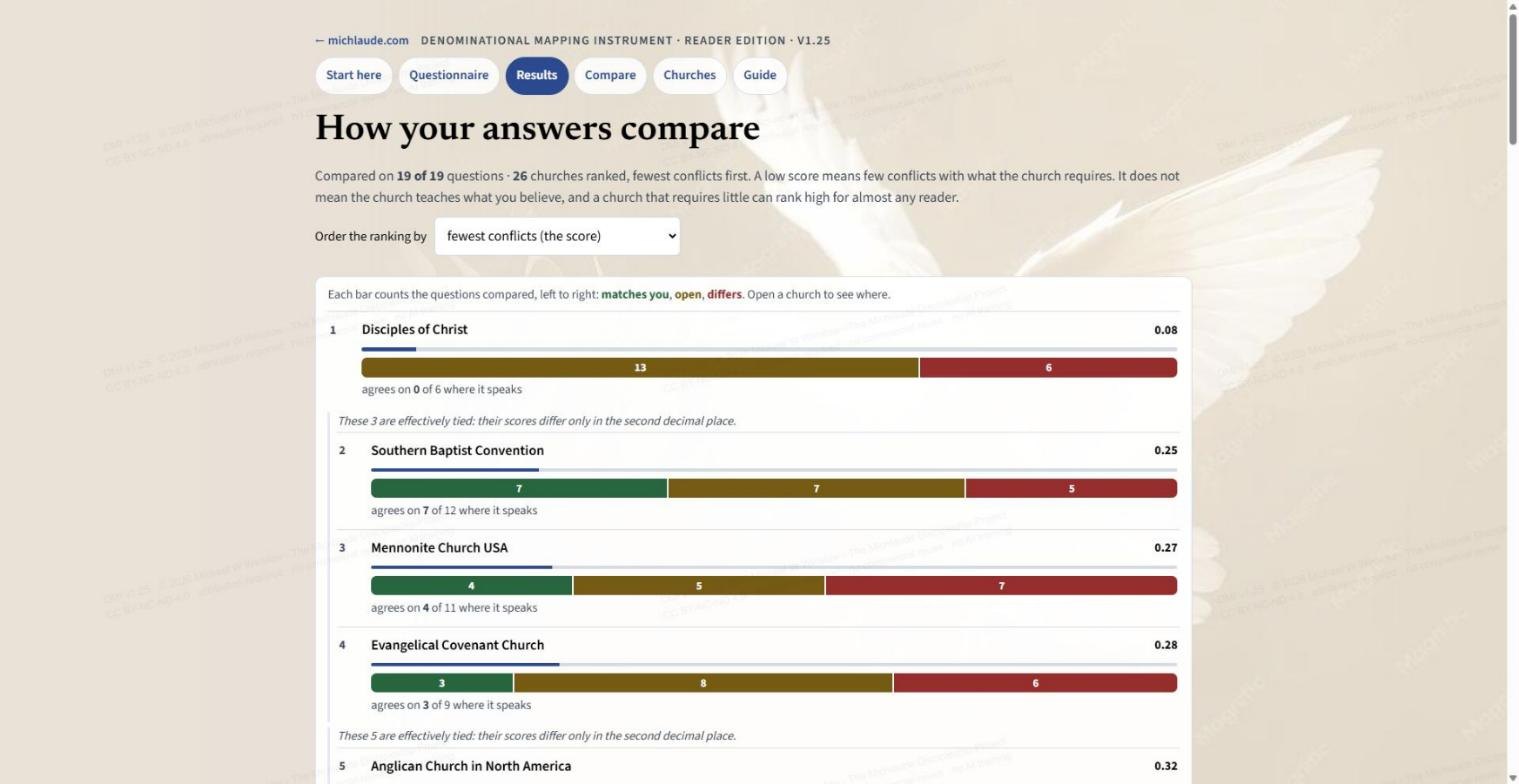
The results page ranks all 26 churches, fewest conflicts first. Each church has a bar that counts the questions compared, left to right: matches you (green), open (amber) and differs (red). Open a church to see where. Where scores differ only in the second decimal place, the page tells you the churches are effectively tied. Use Order the ranking by to sort by the score, by most matches, or by agreement where the church speaks.
Step 3: save your creed and your answers
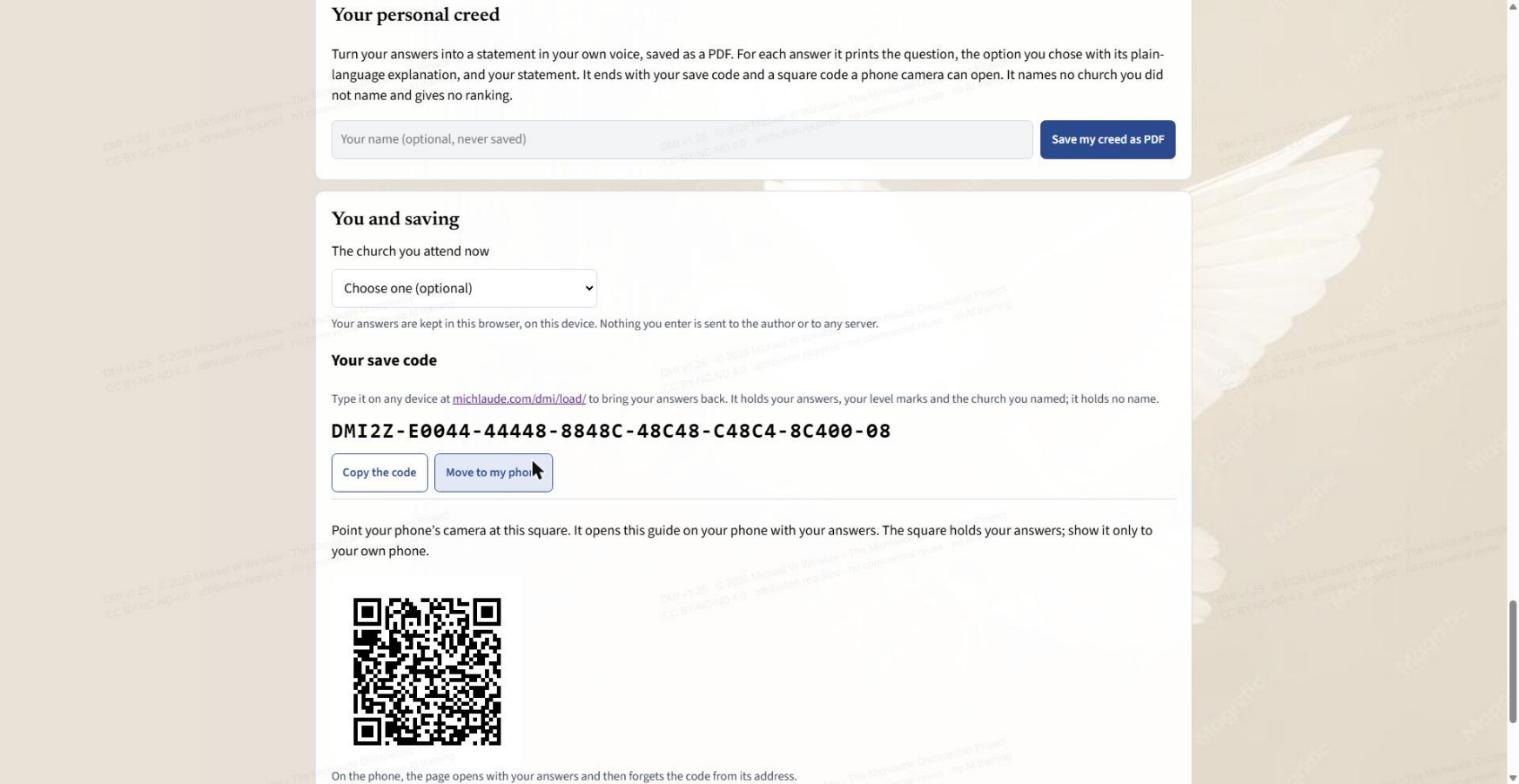
- Your personal creed. Turns your answers into a statement in your own voice, saved as a PDF. For each answer it prints the question, the option you chose with its plain-language explanation, and your statement. It ends with your save code and a square code a phone camera can open. Your name is optional and is never saved. The creed names no church you did not name and gives no ranking. The button is Save my creed as PDF.
- The church you attend now. You can set or change it here.
- Your save code. It holds your answers, your level marks and the church you named, and no name. Type it on any device at michlaude.com/dmi/load/ to bring your answers back. Copy the code copies it.
- Move to my phone. Shows a square code. Point your phone's camera at it and the guide opens on your phone with your answers. Show it only to your own phone.
- Clear all my answers. Press it twice. It removes your answers and level marks from this browser. Your save code or creed brings them back.
Step 4: how to work Compare
Compare puts two sets of answers side by side, question by question, with the extra questions included. Comparing two churches never changes your own answers.
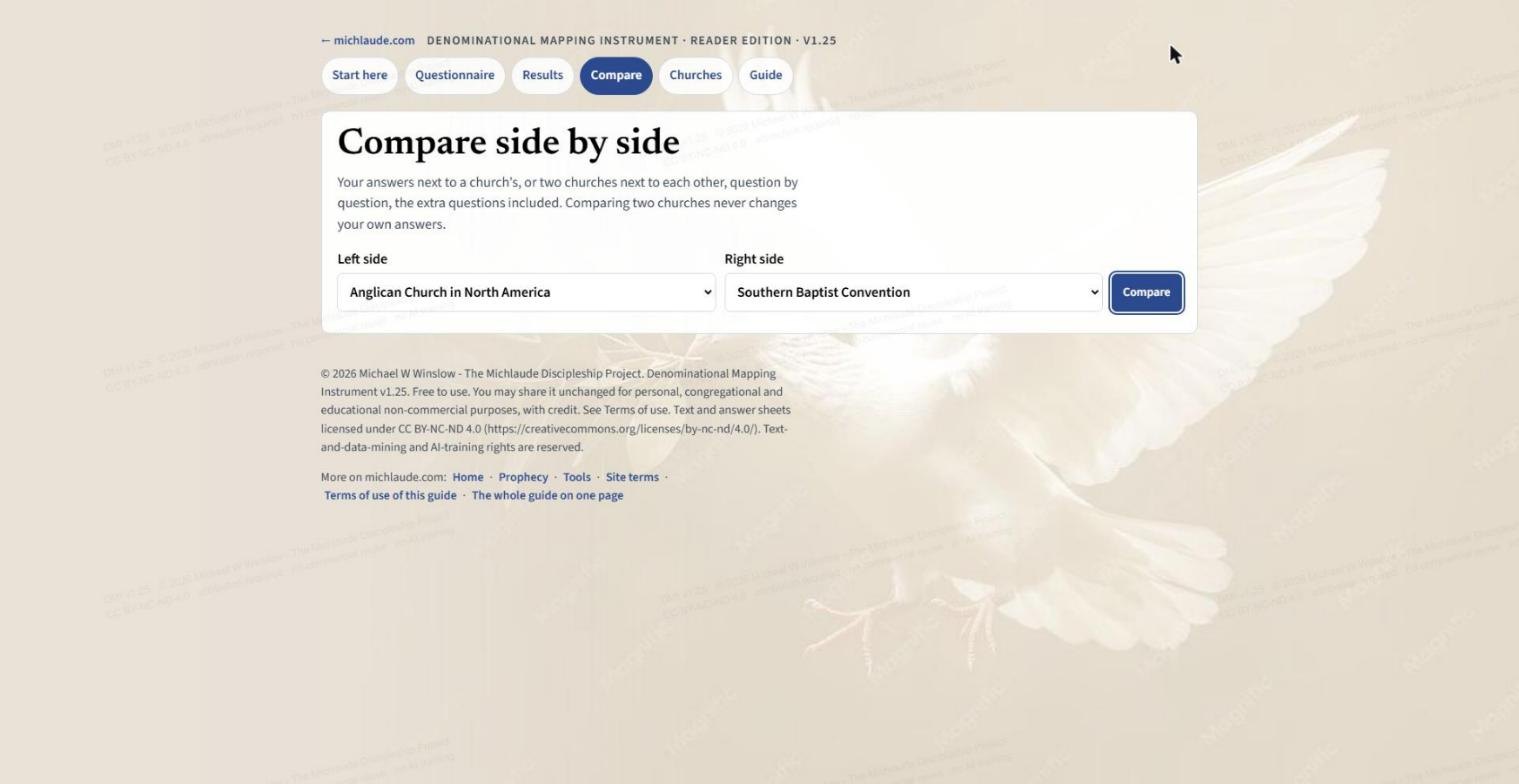
- Choose the left side. It can be You: your answers or any of the 26 churches.
- Choose the right side. Any church.
- Press Compare. The comparison opens in a window on top of the page.
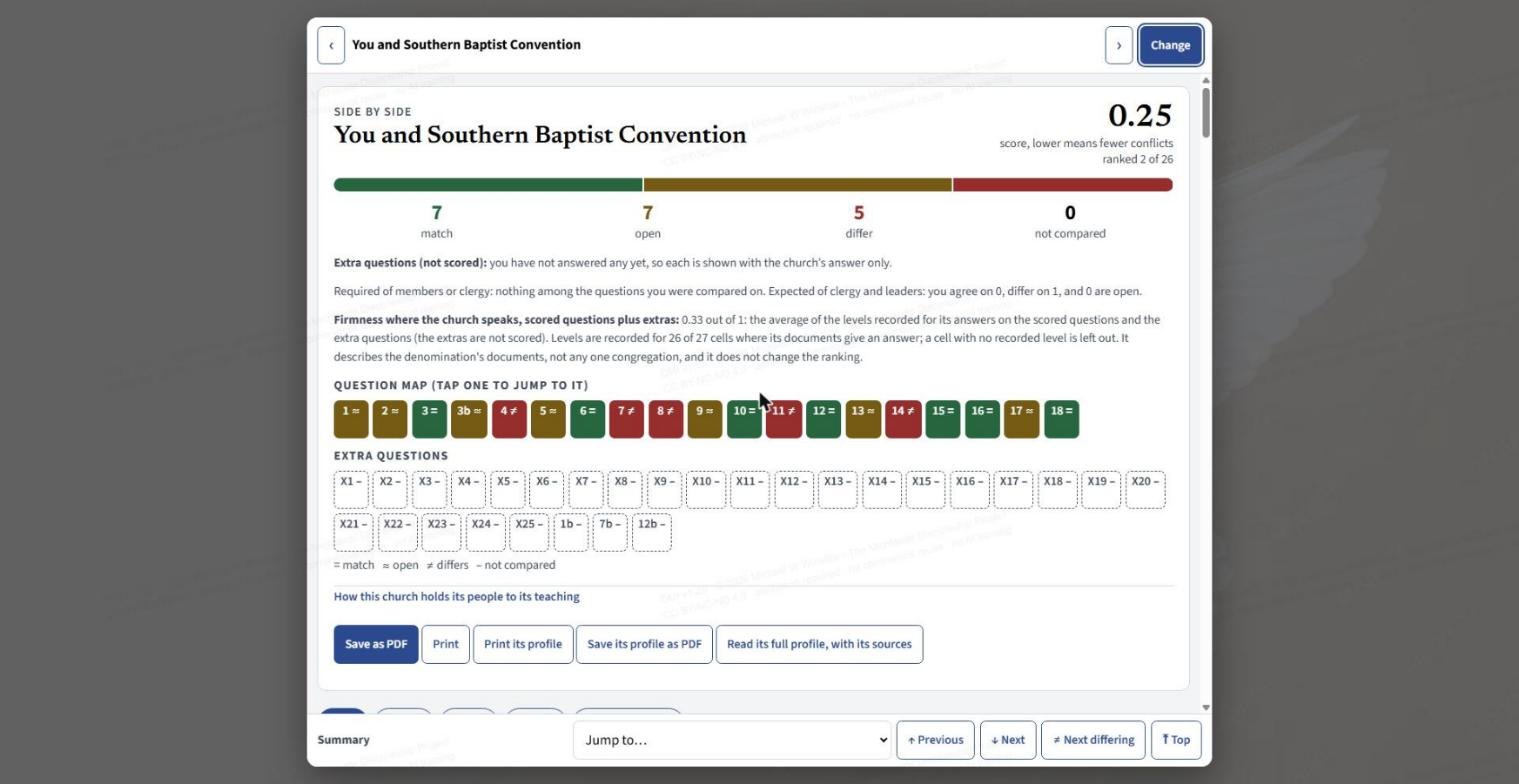
At the top of the window you see:
- The score. Lower means fewer conflicts. For you and a church it also shows where the church ranks among the 26.
- The bar and counts. How many questions match, are open, differ, or were not compared.
- Notes on the extra questions, on what you marked as required, and on firmness, which is how firmly the church holds its answers.
- The question map. One small box per question, and a row for the extra questions. A box shows = for a match, ≈ for open, ≠ for differs and – for not compared. Tap a box to jump to that question.
- Save as PDF and Print for the comparison, Print its profile and Save its profile as PDF, and Read its full profile, with its sources. This is how you save a church comparison.
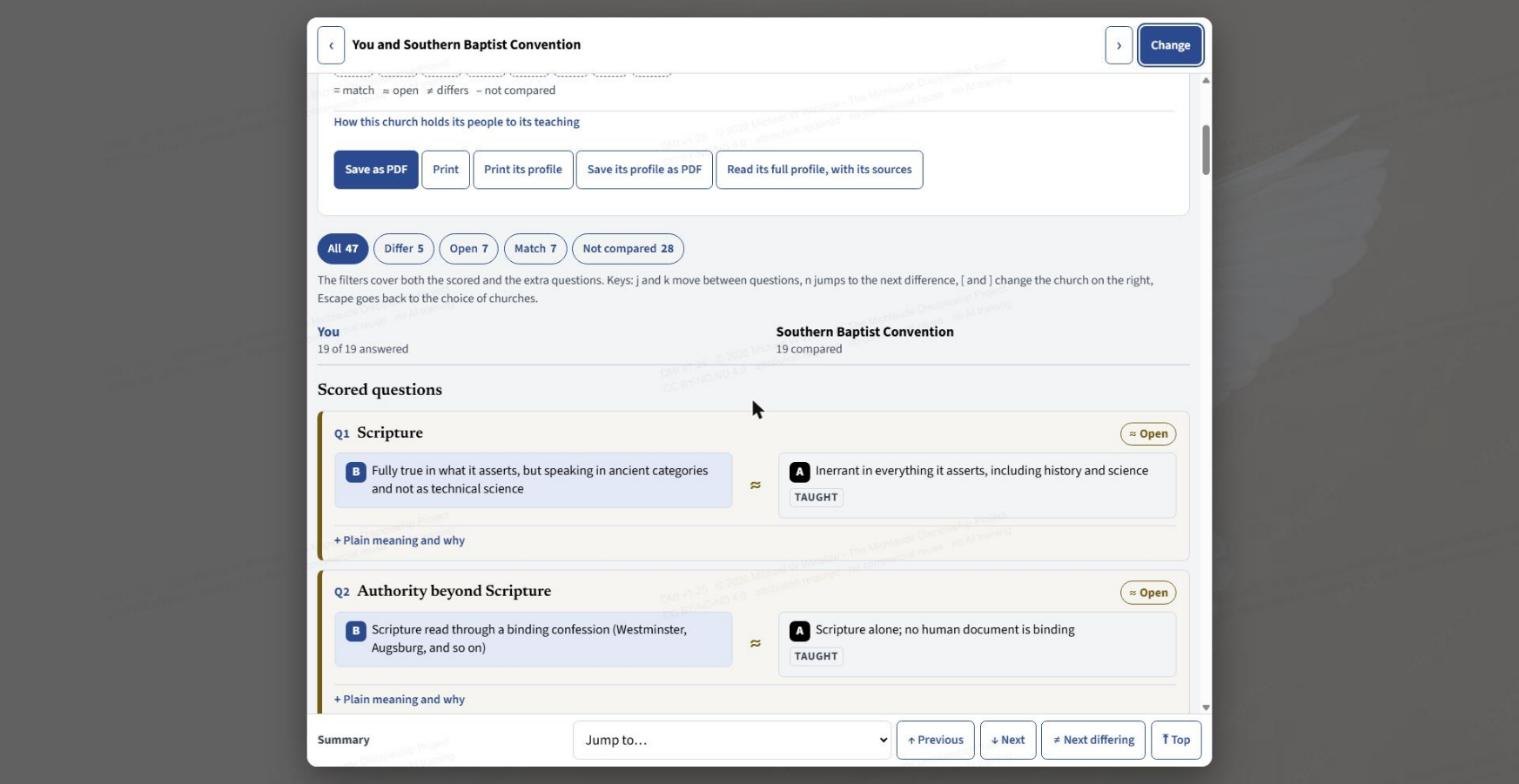
Further down, each question is a row: your answer on the left, the church's answer on the right with how firmly the church holds it (for example Taught). Plain meaning and why opens the reasoning and sources for that row. The filters above the rows (All, Differ, Open, Match, Not compared) show only those rows. They cover both the scored and the extra questions.
The bar along the bottom of the window moves you around:
- Jump to… goes to any question, or back to the summary.
- ↑ Previous and ↓ Next step through the questions.
- ≠ Next differing goes straight to the next question where the two sides differ.
- ⤒ Top returns to the summary.
The arrows ‹ and › in the title bar switch the church on the right to the previous or next one, so you can run down the list. Change takes you back to choosing the sides. The page also lists keyboard keys: j and k move between questions, n jumps to the next difference, [ and ] change the church on the right, and Escape goes back to the choice of churches.
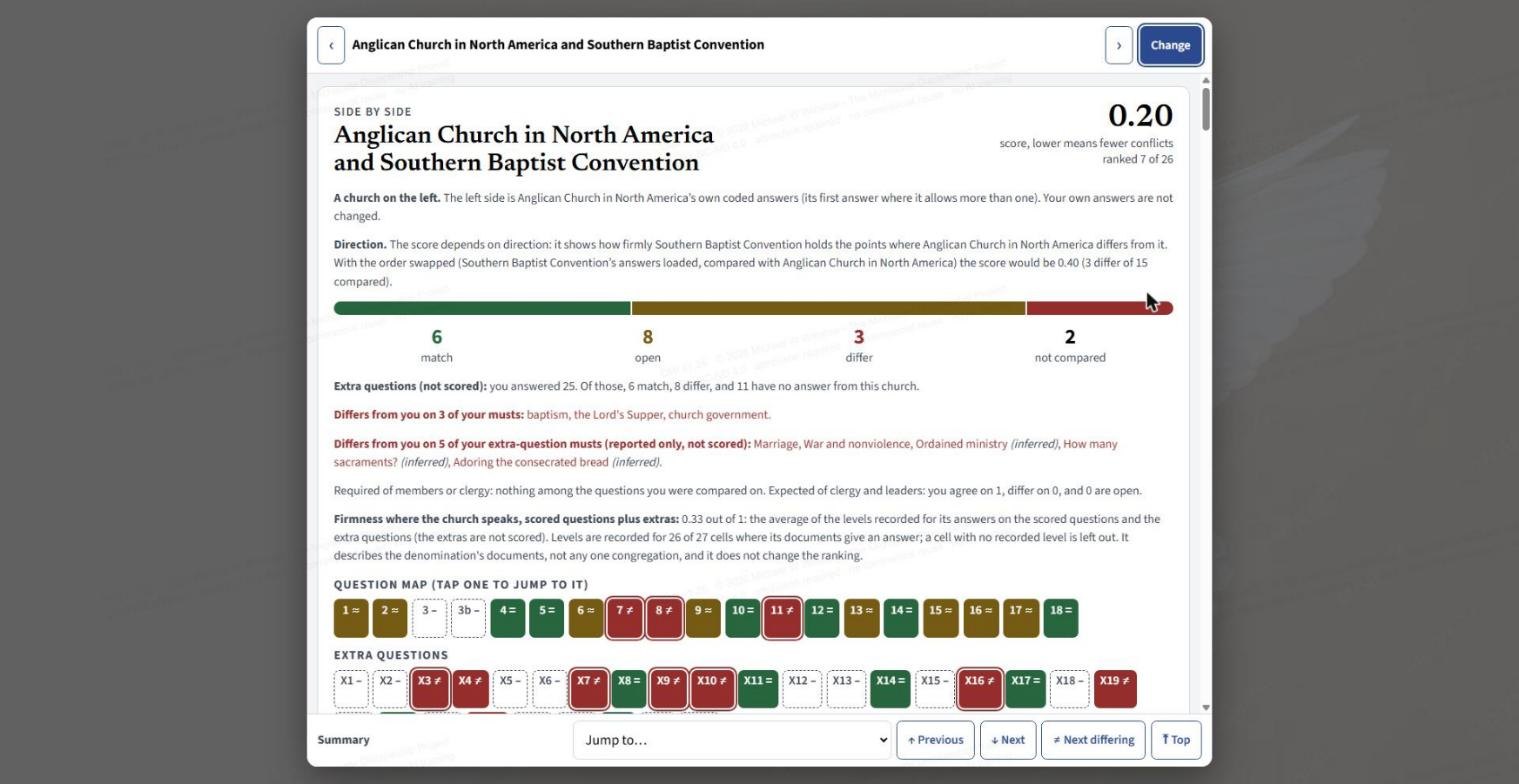
To compare two churches, put a church on the left as well. The left church uses its own coded answers (its first answer where it allows more than one). Notice the Direction note: the score shows how firmly the church on the right holds the points where the church on the left differs from it, so swapping the sides can change the score. In the example shown, the pair scores 0.20 one way and the page says 0.40 with the order swapped.
Step 5: read about a church
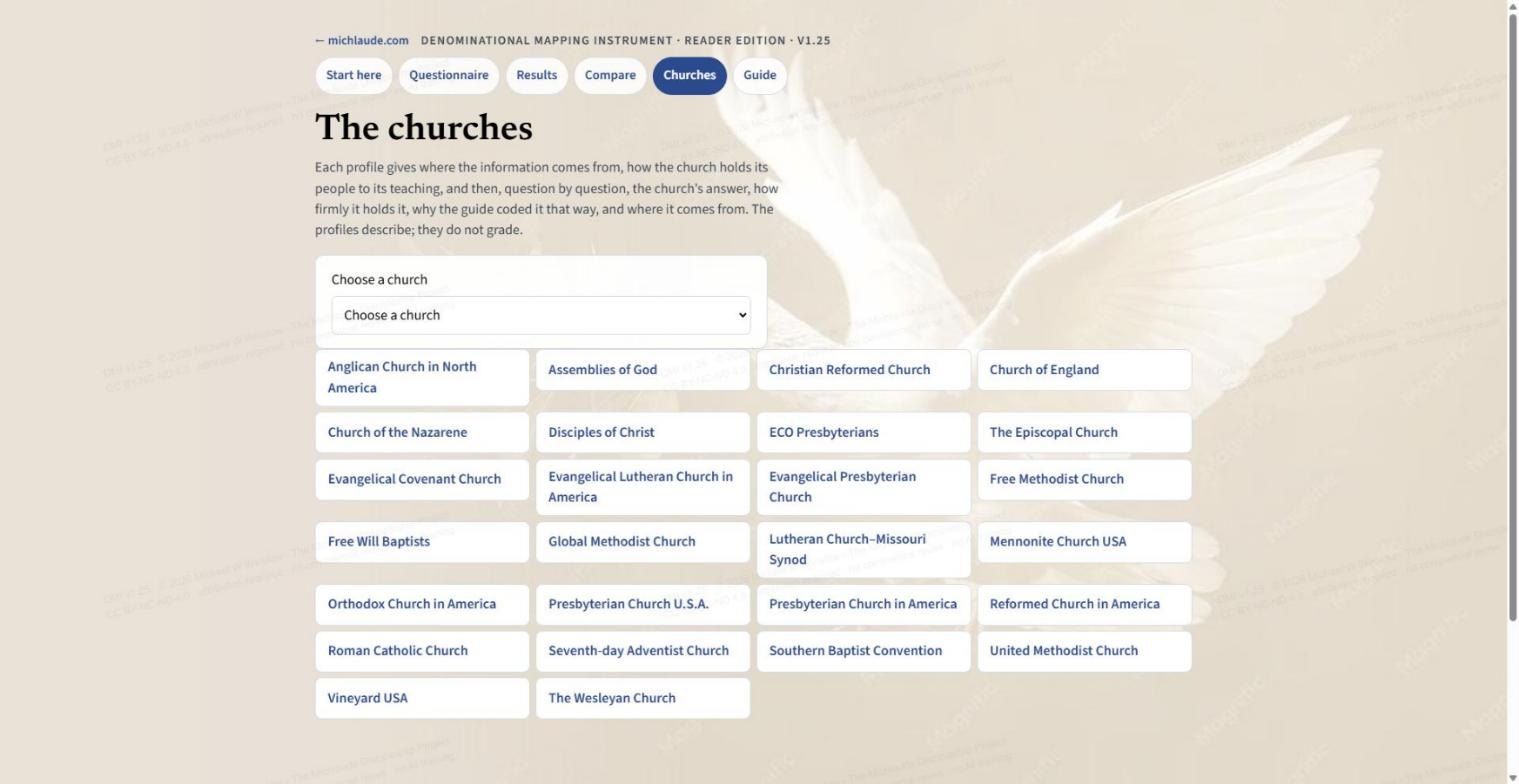
The Churches page has a Choose a church menu and a button for each of the 26 churches. Each profile gives where the information comes from, how the church holds its people to its teaching, and then, question by question, the church's answer, how firmly it holds it, why the guide coded it that way, and where it comes from. The profiles describe; they do not grade.
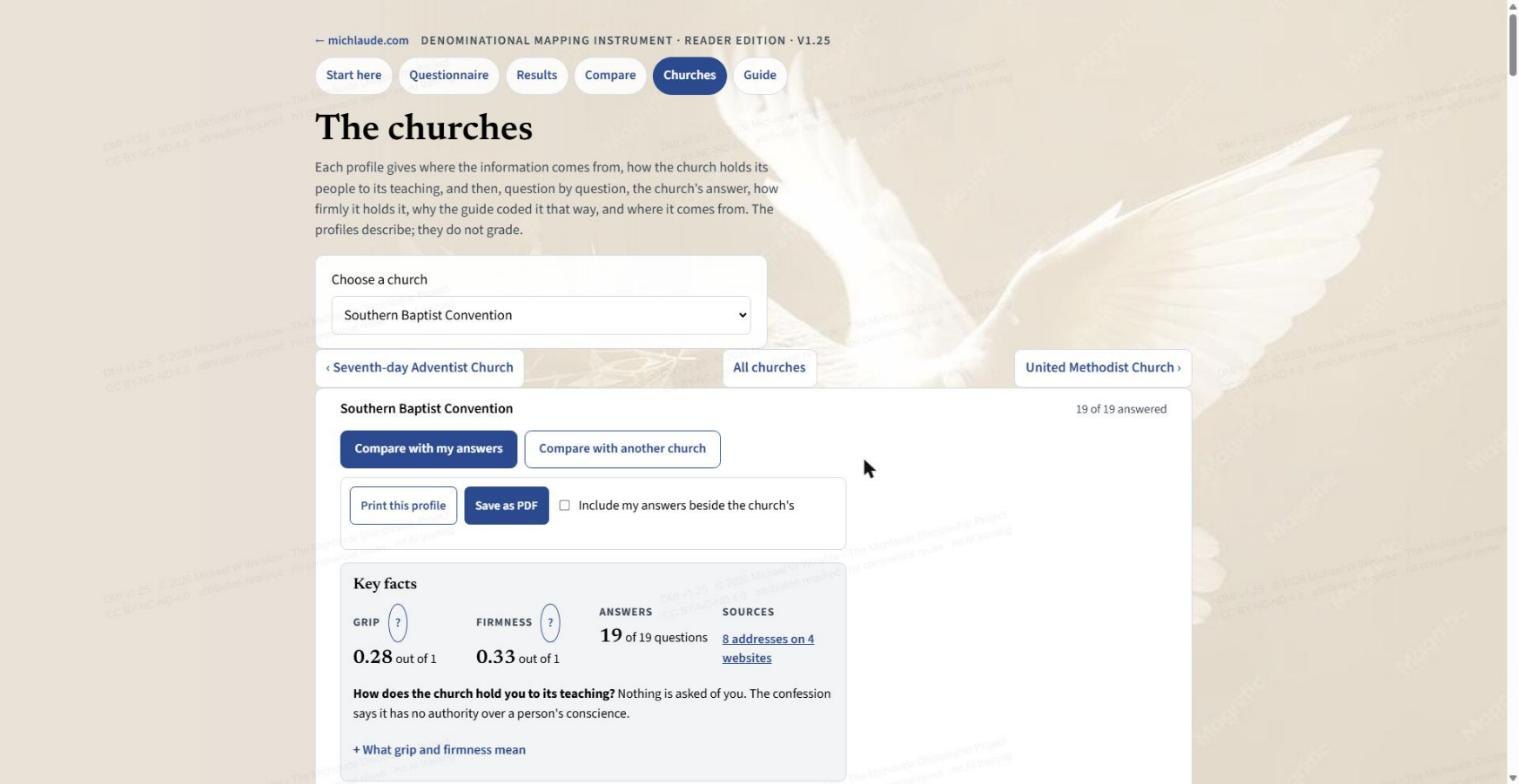
- Previous and next church at the top, and All churches to return to the list.
- Compare with my answers and Compare with another church open the comparison from this profile.
- Print this profile and Save as PDF. Tick Include my answers beside the church's to print yours next to it.
- Key facts. Grip and Firmness out of 1, how many questions the church answers, and how many source addresses on how many websites. The ? buttons and the fold What grip and firmness mean explain the two scores.
- Source notes: where this comes from, and a link to the church's own finder for a congregation near you.
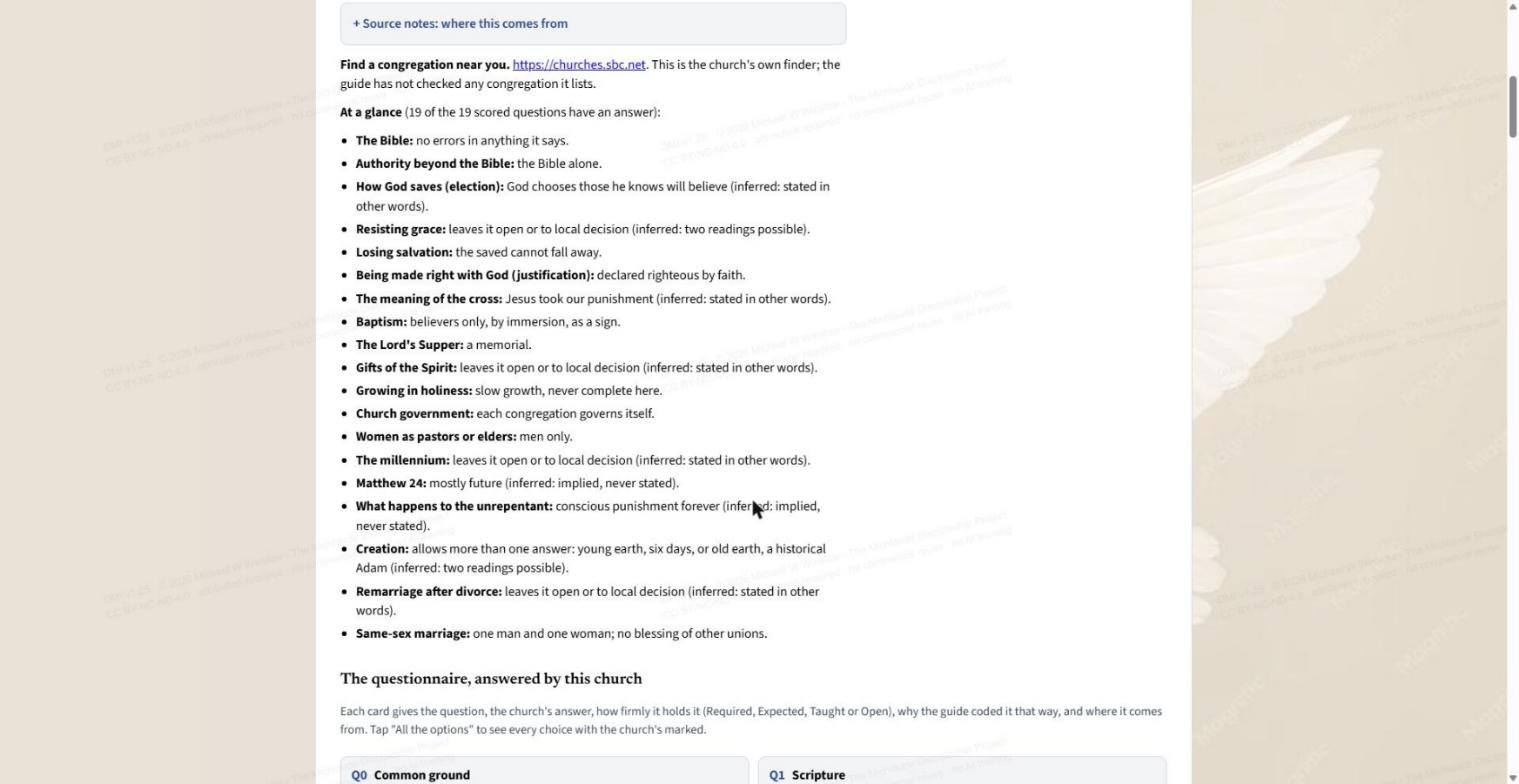
Under At a glance you get the church's answer to each question in plain words. Where an answer is inferred rather than stated, the page says so. Below it, The questionnaire, answered by this church has one card per question, and All the options shows every choice with the church's marked.
Step 6: load saved answers
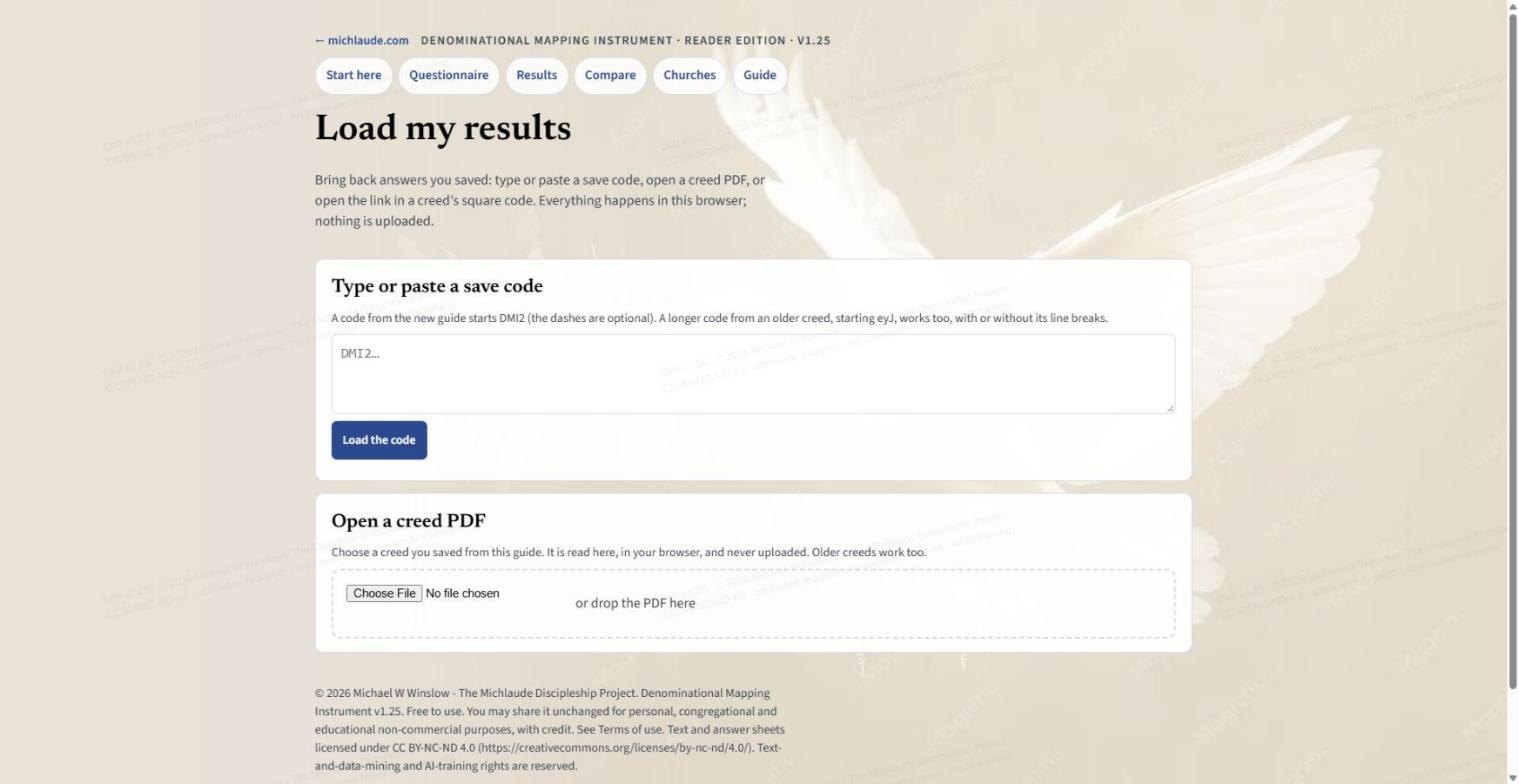
On Load my results you can type or paste a save code (a code starting DMI2, dashes optional; an older, longer code starting eyJ also works) and press Load the code, or open a creed PDF you saved. The PDF is read in your browser and is never uploaded. If your browser already holds answers, the page asks whether to replace them, and Undo brings the old ones back.
The guide
The Guide tab holds the longer explanation: a preamble on what the churches share, how to use the guide, how the comparison works, questions to ask when you visit a church, and a closing word.
A good way to start
Press See an example first to look at a sample respondent's results. Then take the questionnaire, look at your ranking, and compare your answers with the churches that interest you. Read their profiles and sources before you decide anything. Save your creed when you are done.
Share this post:Share on Facebook